# Reviewing Designs
> Learn how to leverage comments in Kanvas's Designer Mode to enhance collaboration and streamline design reviews.
Kanvas's Designer enables you to place comments "inline" with your infrastructure as code. Use comments to offer feedback to team members, take detailed design notes, capture helpful tips for your team members, and include justification as to your infrastructure and application configuration decisions. Pay it forward to your future self by leaving historical record for reference later.
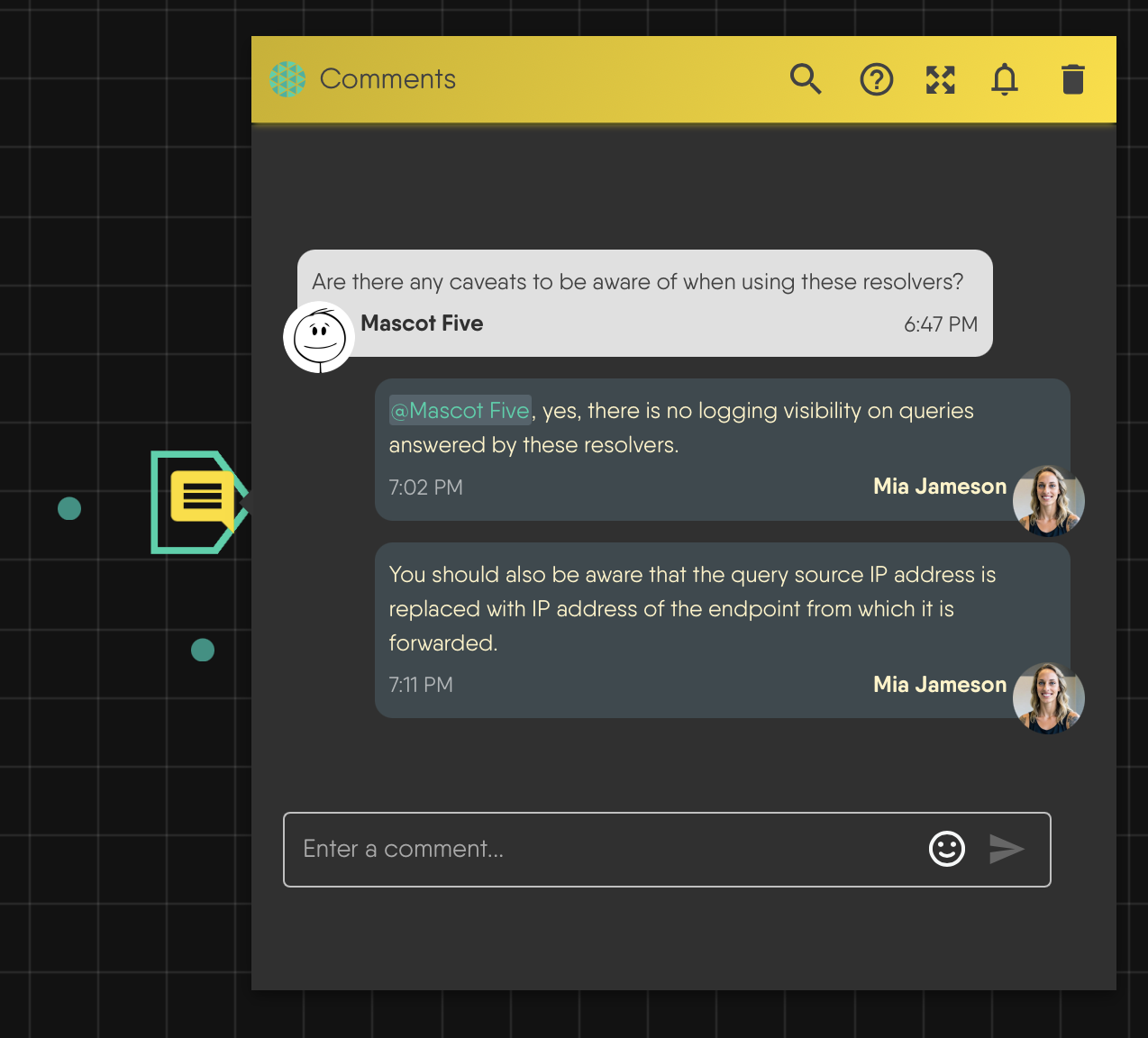
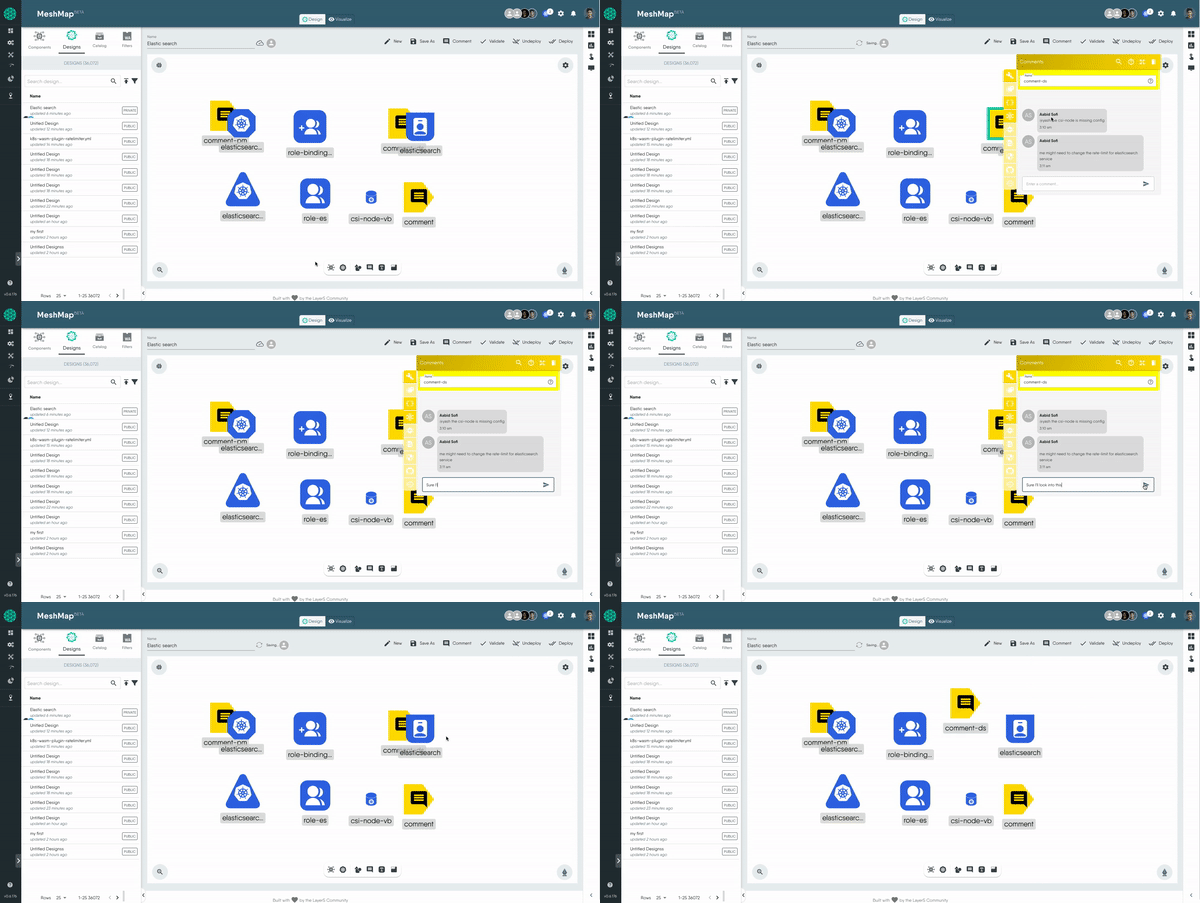
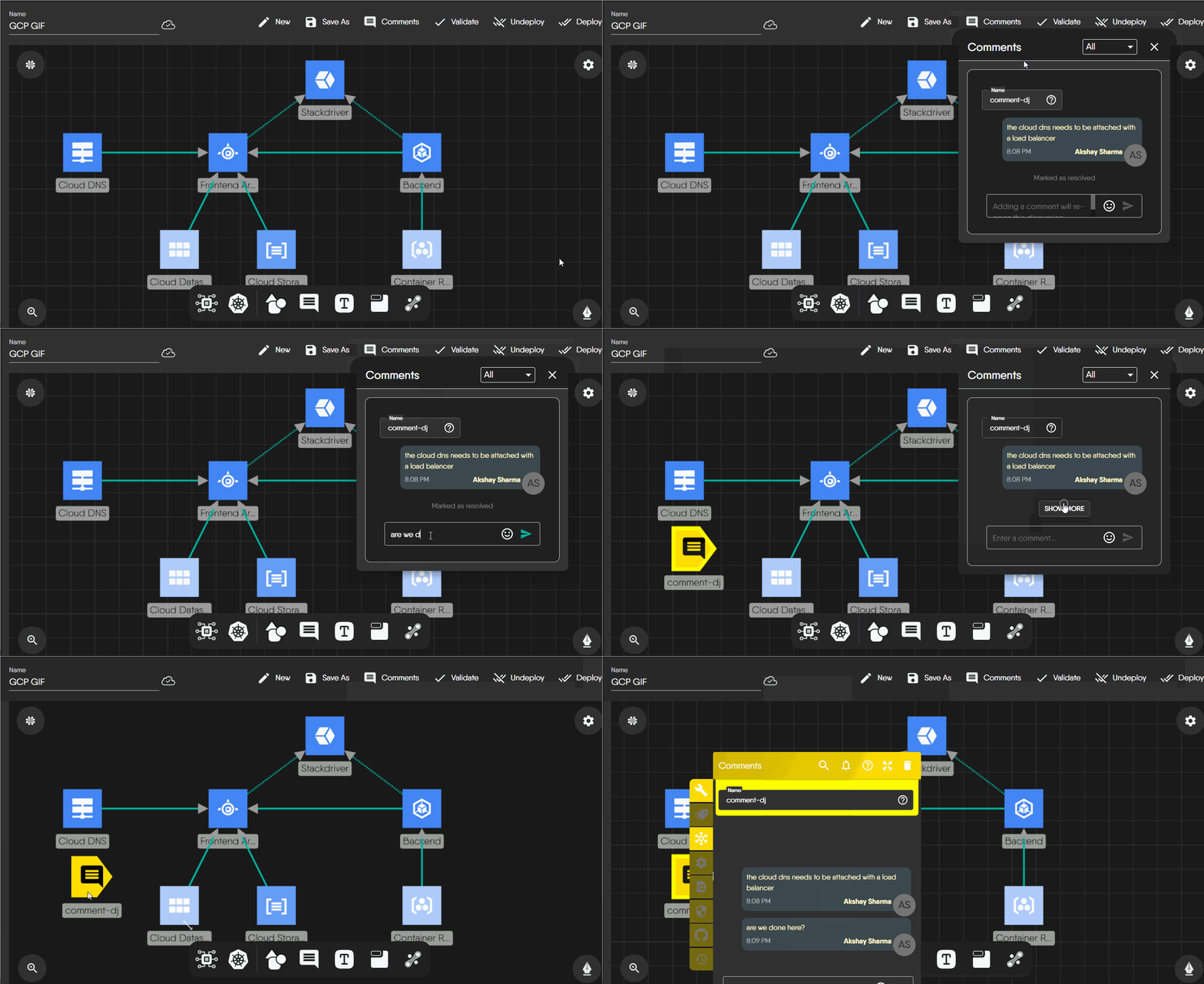
Example of comments in Designer
Your comment may be a request for design review, to offer feedback to peers, or to simply record notes.
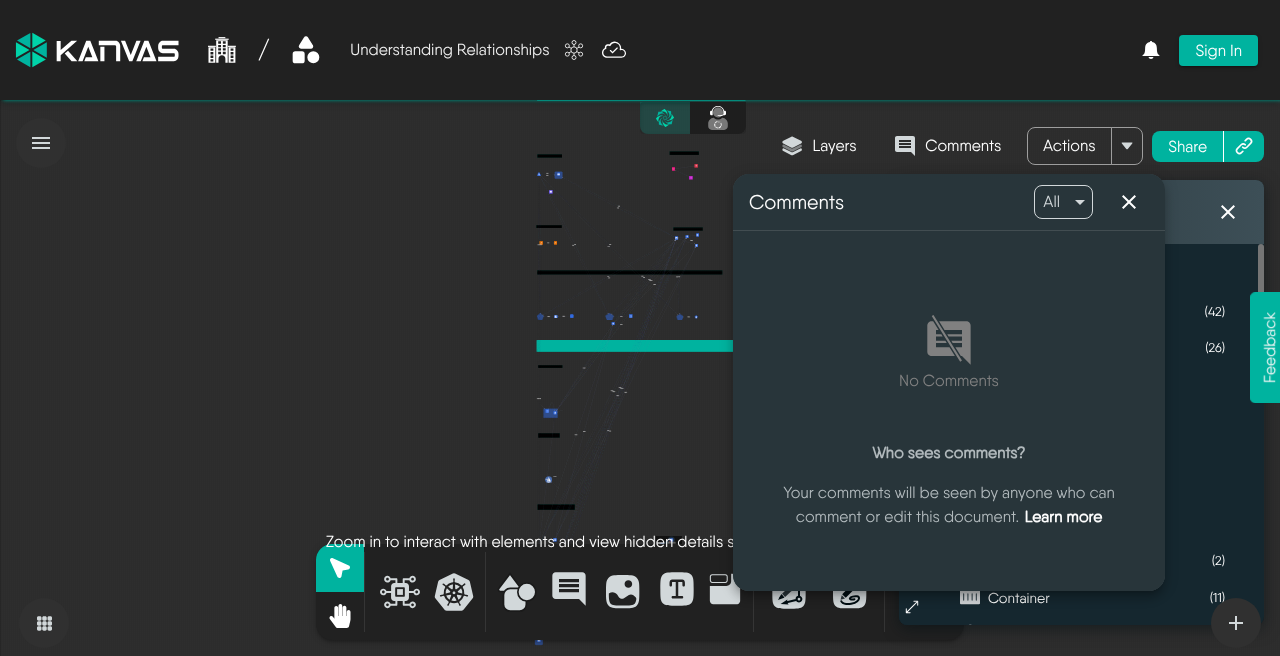
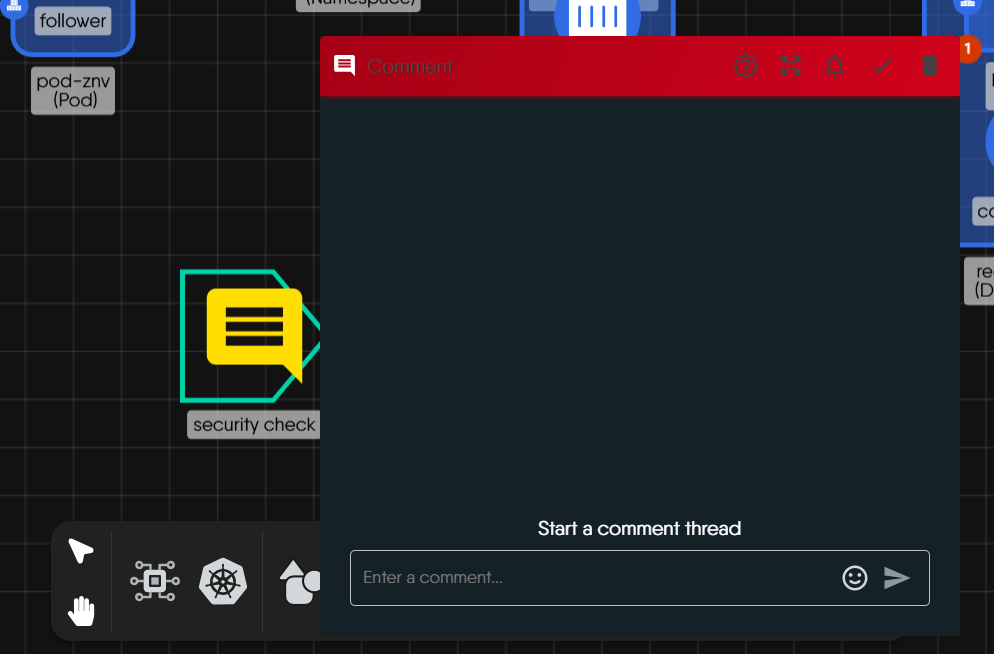
Comments panel empty state (anonymous capture, Sep 2026). Figures elsewhere on this page show populated threads from earlier chrome.
## Commenting on a Design
You can add comments in a number of convenient ways. Since designs are public by default, you can add comments to your designs without having to share them first. This is particularly useful for gathering feedback from team members or stakeholders before finalizing the design.
### Commenting via the Dock
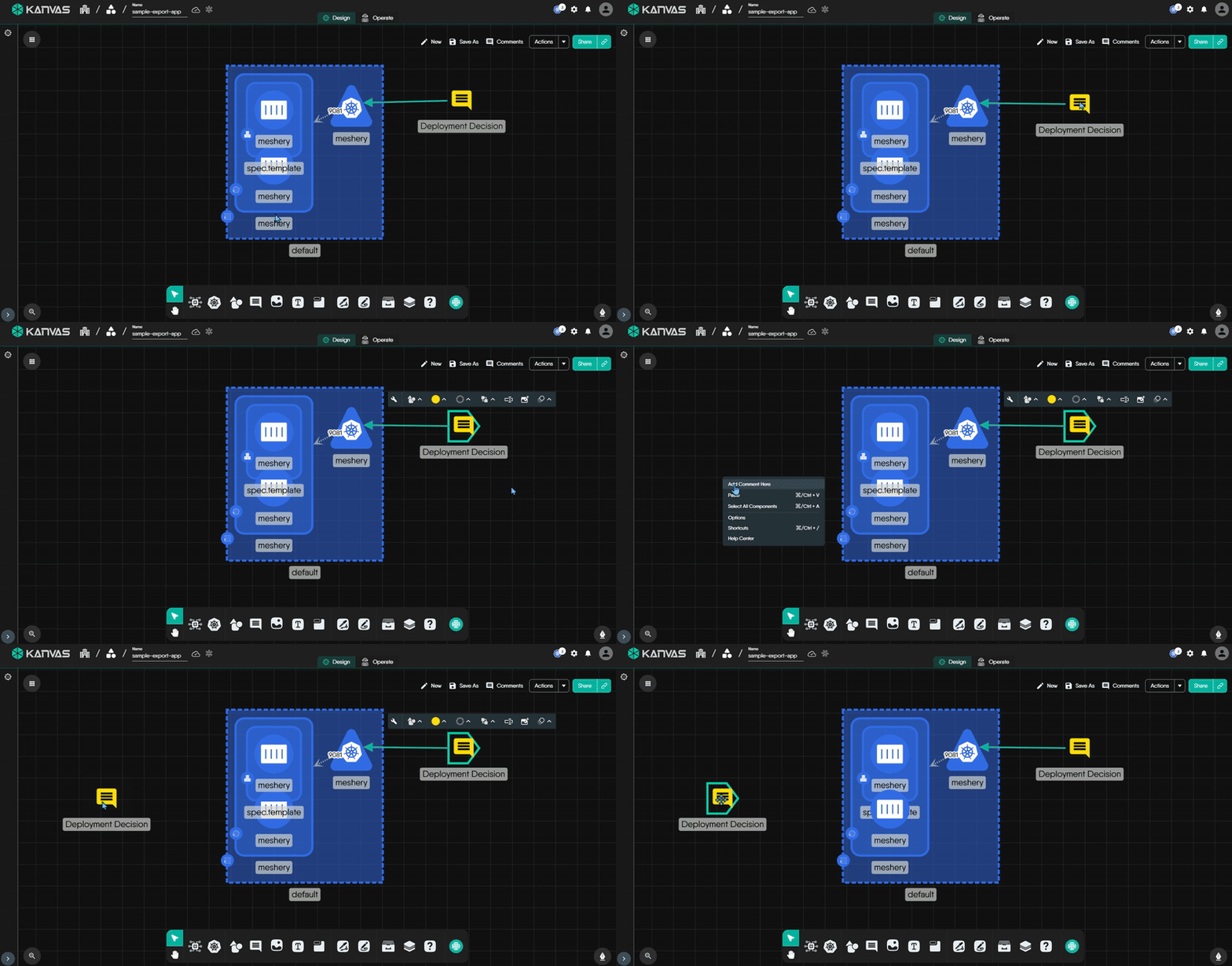
1. Click on the comment icon in the toolbar to open a comment instantly. This is your go-to method for quick annotations without leaving your design or first identifying where you want to place your comment.
2. You can also create a comment by dragging and dropping the comment icon from the Dock to your design. This method allows you to place comments directly on specific elements or areas of your design.
Create a comment from the Dock
### Commenting via context-click
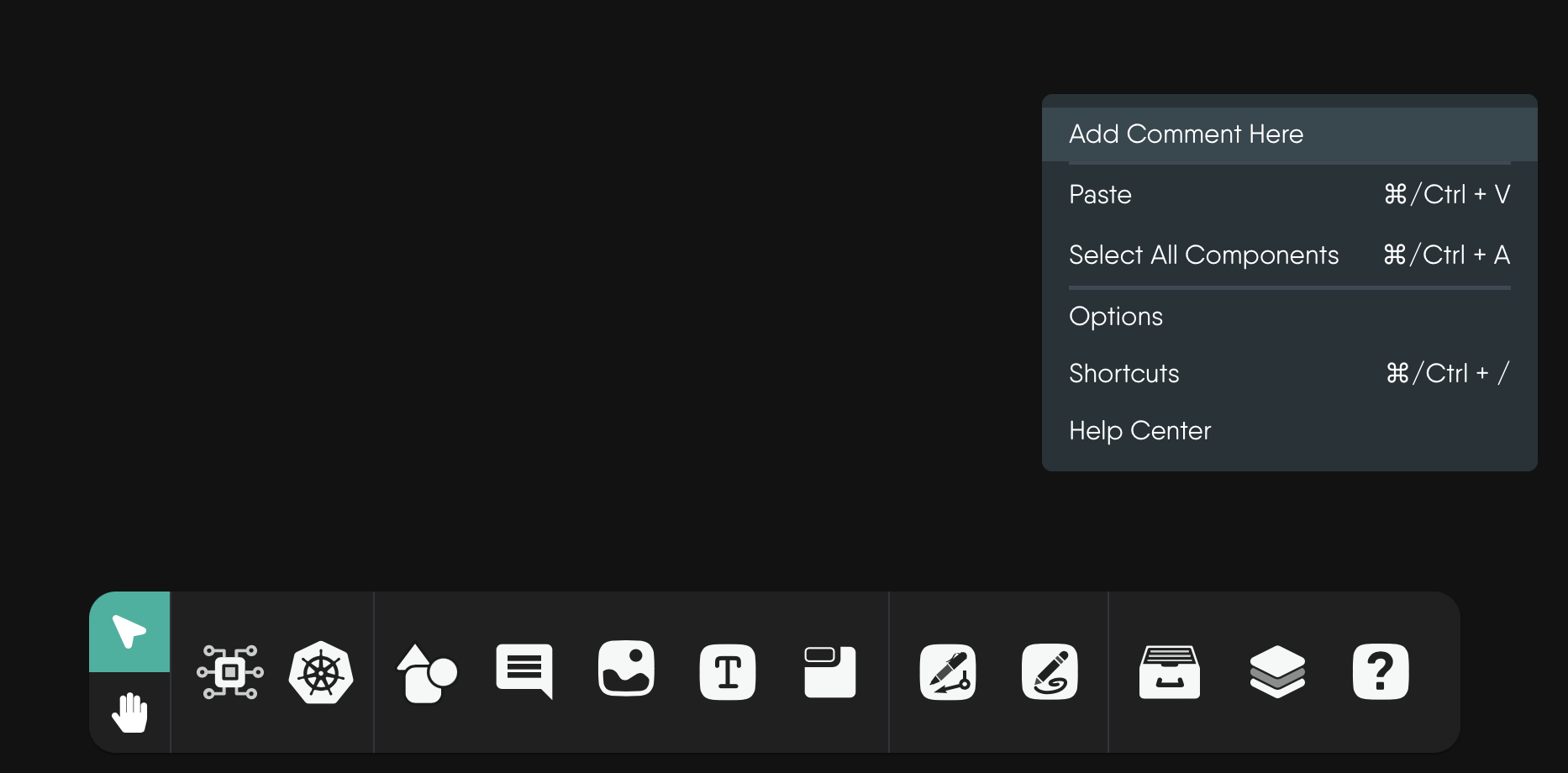
Context-click on any area of your design, and from the contextual menu, select "Add a Comment". Using this context-click method allows for inline placement of your remarks right where you need them - _in context_.
Comment by context-clicking on your design
### Commenting via hotkey
Add a comment into your design when you press "M" as the hotkey. After pressing the hotkey, a new comment will be displayed. You can move the new comment anywhere in your design.
## Design review using comments
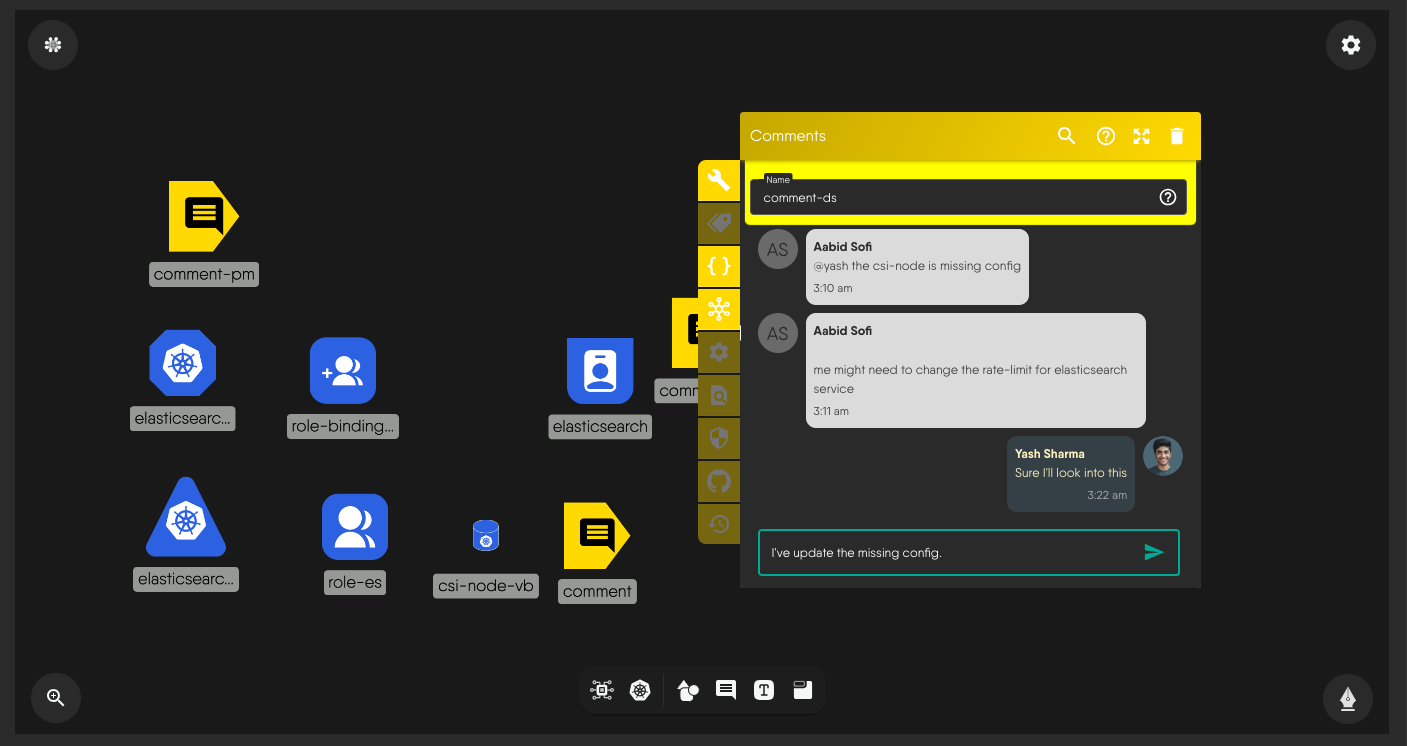
Peer review using comments in Designer
### Conversations in Comment Threads
Any number of users can participate in a single comment. When more than one user makes a remark in the same comment, a comment thread ensues.
You can initiate a comment thread by adding a remark to an existing comment. Collaborators can reply directly to comments in real-time (approximating a chat). Comment threads create a structured dialogue around each point of feedback for easy reference.
### Utilize Mentions
Easily draw the attention of relevant team members by tagging them in your comment. To activate this, type @ in the comment box and a list of your team members will appear then you can select who you want to mention. This ensures that the right people are notified and can contribute to the discussion.
### Comment on Specific Elements
Leave comments on specific elements within the design, whether it's a shape, text, or an entire component. This specificity ensures that feedback is targeted and directly related to the part of the design under discussion.
### Resolving a Comment
Resolving a comment thread indicates that the conversation on that topic has concluded. When a comment is resolved, the comment component is removed from view on the canvas. You can resolve comment threads either directly on the canvas or from the comment history panel.
As a practice, resolving comments can help expedite issue resolution on a particular topic. The action of resolving a comment is like a "soft delete" in that Kanvas designs retain history of each comment made and discussions within.
This retained history is kept as an archived copy of the comment within your design document. You can access this comment history to review previous discussions and decisions. A best practice is to resolve comments rather than delete them, specifically for the benefit of having a historical reference of prior notes, discussions, and decisions.
You can also reopen comments.
### View Comment History
View comment history
Manage your comment history by clicking on the "View Comment History" button. This allows you to revisit past discussions and decisions, ensuring that important context is never lost.
From the comment history panel, you can manage individual threads without leaving the review flow:
- **Resolve comment threads** once a discussion is complete while keeping the thread available for future reference.
- **Mute notifications** for a specific comment thread when you want to reduce email noise without changing your broader comment notification preferences.
- **Delete individual comments** when they should be removed entirely instead of kept as part of the design's historical record.
For most review workflows, resolving a comment is preferred over deleting it because resolution preserves context and lets you reopen the thread later if needed.
### Duplicating / Copying Comments
Kanvas supports two ways to reuse comments: **Duplicate** and **Copy**. Both create a new comment based on the original, but they serve different use cases.
#### When to duplicate a comment?
Design reviews often involve evolving threads or multiple subtopics. Duplicate is ideal when:
- **Preserving Valuable Context**
Long threads may include resolved and unresolved content. Duplicating preserves ongoing relevance while letting you resolve the original.
- **Managing Multiple Action Items**
Break down one thread into focused, actionable items. This improves clarity and prevents blockers from holding up the discussion.
#### When to copy a comment?
**Copy** is helpful when you need flexibility to place the comment somewhere else—either within the same design or across different designs.
This method supports:
- **Manual Placement**: Paste the copied comment exactly where you need it.
- **Bulk Operations**: Copy multiple selected comments at once using mouse drag.
Tip: Comment participants' access to designs
Copying a comment into another design does not change the target design’s sharing settings:
Participants from the original thread may not have access
Notifications may still be sent, but users might not be able to view or respond
#### How to Copy or Duplicate
- **Right-click and Copy**: Choose **Copy** to manually paste it later.
Copy a comment
- **Right-click and Duplicate**: Use **Duplicate** to instantly create a copy in the same design.
- **Keyboard Shortcuts**:
- / : Copy and paste
- : Undo the action
Tip: Copy more than one item at-a-time
Click and drag the left mouse button to select multiple comments and copy them together.
#### Naming Matters
Kanvas auto-generates comment names, useful for quick feedback. When duplicating or copying for tracking or history, **rename the copy** to reduce confusion and aid navigation.
#### What Happens When You Duplicate or Copy a Comment?
- **Timestamp**: The original creation time is preserved.
- **Threads**: All replies in the original thread are included.
- **Name**: If the comment has a name, the clone keeps the same name.
- **Placement**:
- **Duplicate**: Instantly places the comment in the same design.
- **Copy**: Allows you to paste the comment manually into the same or a different design.
- **Notifications**: Neither duplicating nor copying sends a creation notification to the design owner or participants. However, replies to the cloned comment will notify participants unless they’ve muted the thread.
- **Independence**: The clone is separate—editing or deleting the original does not affect the copy.
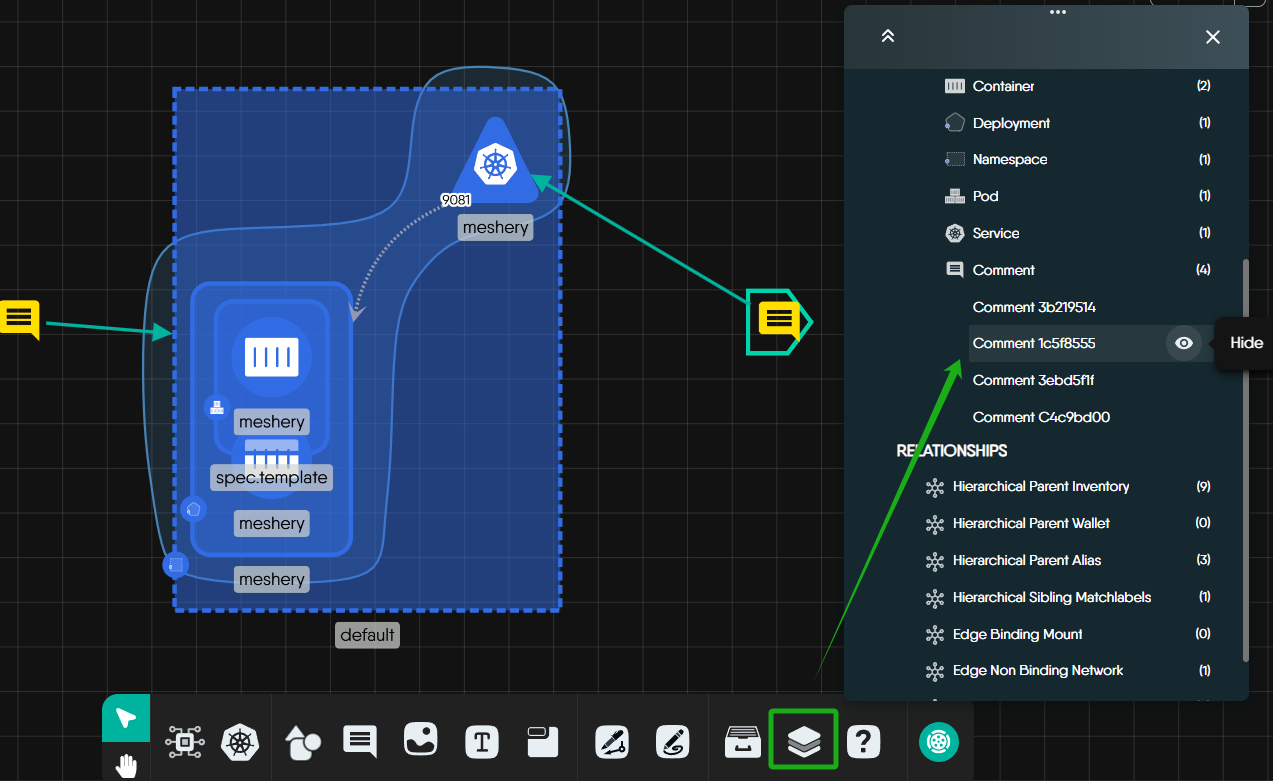
### Hide Comments Using the Layers Panel
You can temporarily hide or reveal open comments using the Layers panel—just like toggling layers in Photoshop.
This helps you focus on the most important parts of your design and improves clarity during reviews.
Hide comments using the Layers panel
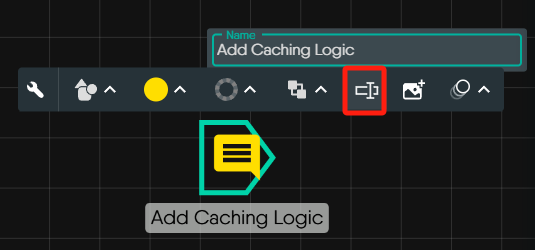
### Name Comments for Easy Access
If you plan to keep certain comments in your design for documentation, team reference, or historical context, it's a good idea to give them meaningful names. This simple habit improves clarity for both you and your team—especially when reviewing or revisiting designs later.
Naming a comment in Designer
Best Practice
Give long-lived comments short, descriptive names like "Needs Load Balancer" or "Review DNS settings"
so you can quickly find them in the Layers panel later on.
### Reopen a Resolved Comment
If a comment is resolved by mistake, it can be reopened. Adding a new comment to a resolved discussion will also re-open the thread. Reopening a comment allows you to reinitiate conversations, address additional concerns, or make further changes.
Follow the steps below to reopen a comment:
Unresolving comments in designer
## Managing Comment Notifications
Each time that a new comment is made in a design, remark placed into existing comment, a comment is resolved or reopened, you and your collaborators might receive notification via email.
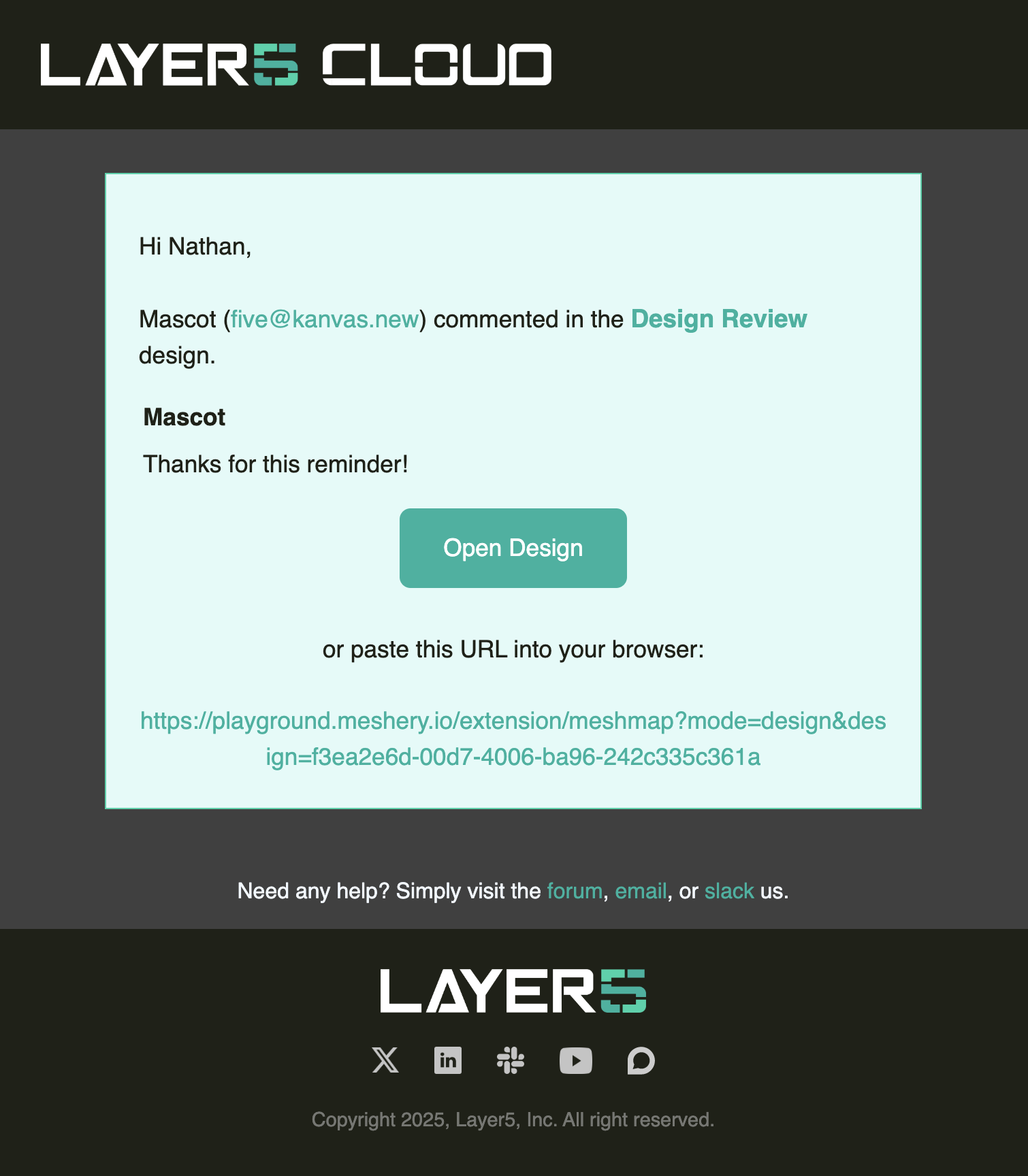
Example email notification received when design comment is made.
As the owner of a design, you will receive notification each time a comment is made in your design. Tag other users and have them receive notification of your comment by mentioning their username with the `@` symbol. All users participating in a comment will be notified as new remarks are added in a comment thread.
Collaborator Notifications
Collaborators (users you have shared the design with) do not receive notifications for new comments unless they are explicitly tagged in that comment. To notify a collaborator, mention them with the @ symbol in your comment.
### Enable Email Notifications
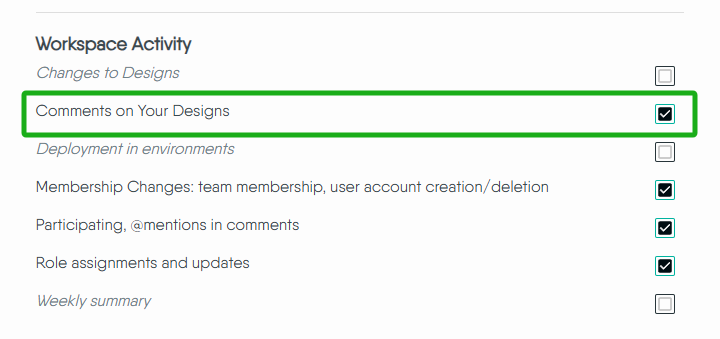
Customize your [notification preferences](/cloud/concepts/identity-and-security/users/notification-preferences/) to receive emails for comments on your design. When this is enabled, you'll be notified when comments are made on your design, you're mentioned in a comment, or someone adds a comment to a thread you've previously engaged with.
### Muting Comment Notifications
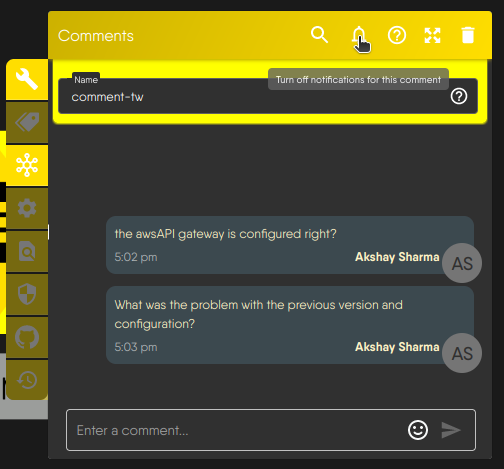
You can mute email notifications for a specific comment thread directly from the comment box by clicking the notification bell icon, or from the comment history panel. Muting is useful when you want to temporarily pause updates on a specific discussion or reduce overall email clutter.
Example of comments in Designer
Thread-level Muting Behavior
Muting a comment thread applies only to participants in that thread. Design owners continue to receive notifications for all activity within their design regardless of thread-level muting.
You can also manage all your comment notification settings centrally through the **Cloud -> Account -> [Preference](https://docs.layer5.io/cloud/concepts/identity-and-security/users/notification-preferences/)**.
Manage all comment notifications centrally in the Cloud
Global Notification Preferences
Notification preferences set in Cloud apply across all designs. Disabling notifications via preferences stops email notifications for both owners and collaborators.
#### What Muting Affects
- **Muted Comment Thread:** This includes all subsequent replies within the same thread, whether directed at you or not.
- **Your Mentions:** You won't receive email alerts when someone mentions you in the muted design's comment thread.
#### What Muting Doesn't Affect
- **Mentions in Other Designs:** You'll still be notified if someone mentions you in new or existing comment threads on other designs in your portfolio.
- **New Comment Threads:** Muting applies only to the specific thread where it is activated. New threads on the same design follow standard notification behavior: design owners receive notifications for all comment activity, while other users receive notifications only if they are participants in the thread or are explicitly mentioned.
Muted Notifications Reminder
While email alerts are muted, you can still access and view all comments on the design at any time.
You’ll never miss an important mention, as notifications for mentions outside the muted thread remain active.
Missed Notifications
Kanvas does not track the read or unread status of messages inside comment threads for each user. If a user is mentioned, but misses the notification, they might not become aware of the comment until they receive a new notification for another comment in that conversation.
## Best Practices for Effective Design Reviews
### Use Color-Coded Comments
To make your reviews more structured, Kanvas offers a number of tools inside the comment system itself. Use them to streamline collaboration and clarify your feedback.
You can use color to visually categorize your comments. Here is one common example:
Use color to visually categorize your comments
- 🔴 **Security** concerns
- 🔵 **Scalability** or performance-related notes
- 🟢 **UI/UX** feedback
- 🟡 **Open questions** or suggestions
This makes it easy for team members to scan and prioritize feedback based on type.
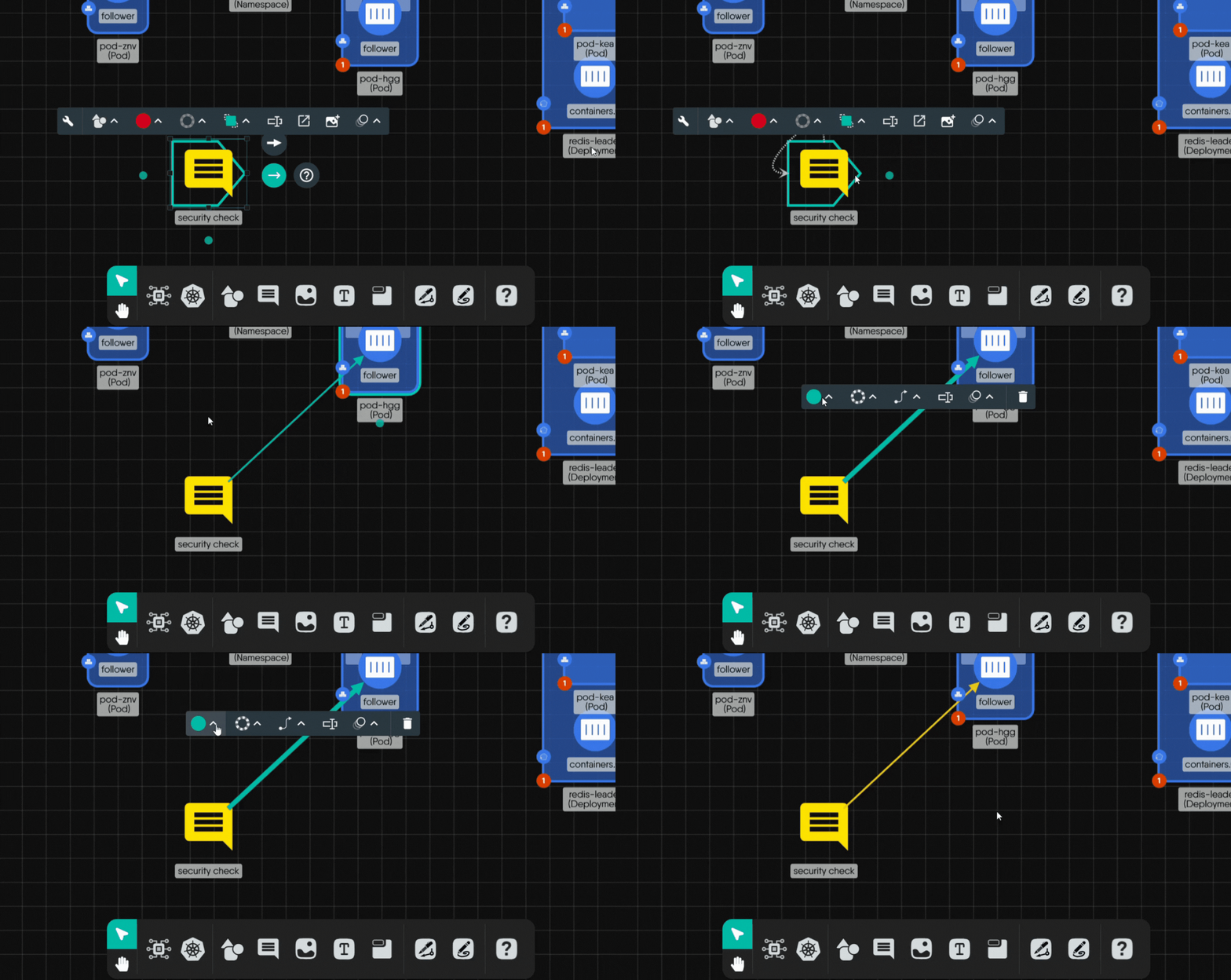
### Use Annotation Arrows
Link your comment to a specific part of the design using **annotation arrows**. This reduces ambiguity and ensures the context of your comment is crystal clear.
Follow the steps about how to annotate the comment:
Annotating a comment
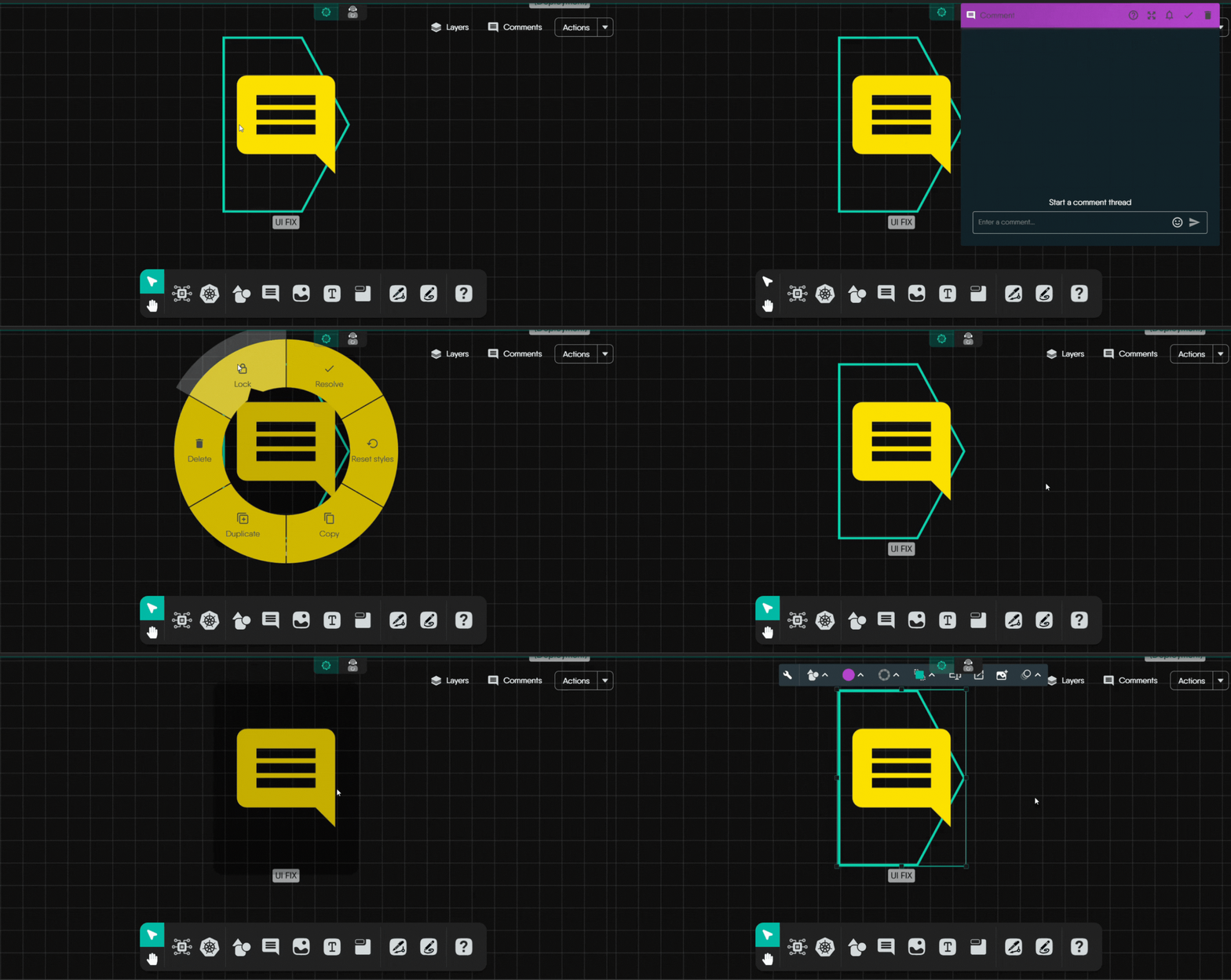
### Lock Important Comments
Lock comments in place to keep them visible even as you continue working. This is helpful for feedback that should remain persistent throughout the review cycle.
Example on how to lock your comment:
Locking comments
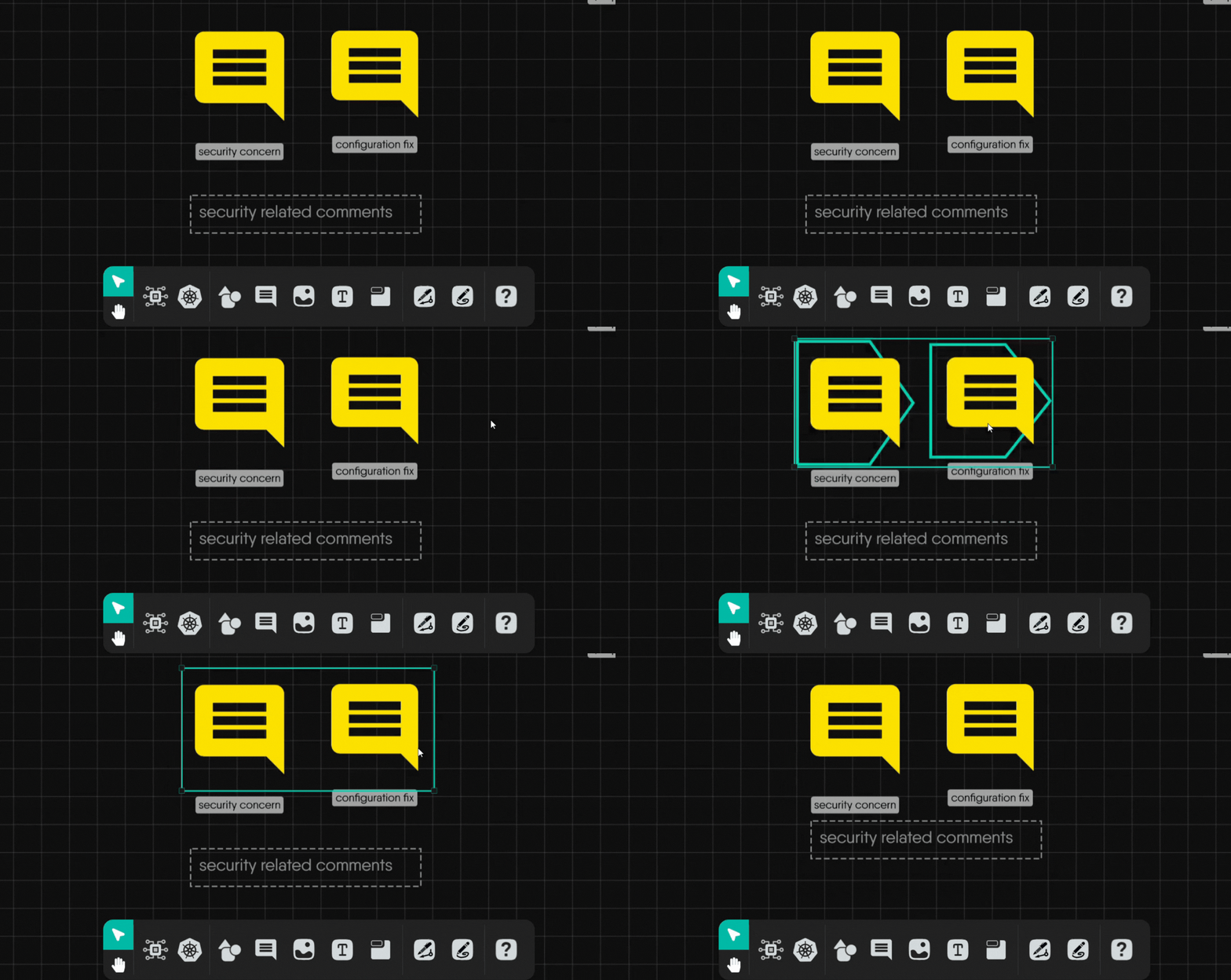
### Group Related Comments
Bundle multiple related comments using the **Group** feature. This keeps threads organized and easier to track, especially for complex designs with many parts.
Two related comments Grouped
### Resolving vs deleting comments
Resolving a comment hides it from the canvas but keeps its history, so you can always revisit or reopen it later. Deleting a comment removes it entirely — including all threads and history — and cannot be undone. You can delete individual comments from the comment history panel.
### Be specific and actionable
Provide specific feedback that the designer can act on. Vague comments can lead to misunderstandings and delays in the design process. Support your feedback with examples or references. This can help clarify your point and provide the designer with tangible suggestions for improvement.
### Balance positive and constructive feedback
Frame feedback in a constructive manner, focusing on how things can be improved rather than just pointing out flaws. Acknowledge what works well in the design before delving into areas that need improvement. This helps maintain a positive and collaborative atmosphere.
### Regularly check and respond to comments
Stay engaged in the review process. Regularly check and respond to comments to keep the conversation alive and ensure a smooth workflow.
### Prioritize feedback
Highlight the most critical feedback first. This ensures that the designer focuses on the most important aspects for improvement.