 Subscription:
Sharing Designs
Categories:
In Kanvas, you can share a design with specific people and set its visibility. A grant is for one person and has no access level: there is no view-only or comment-only option. A person who can open a private design through a grant can edit it, comment on it, clone it, and download it, and can change its visibility between private and public.
Sharing requires an account
Anonymous visitors to kanvas.new can create and edit designs without signing in, but sharing a design requires a signed-in account. Choosing Share as an anonymous visitor prompts you to sign in; once you do, share as described below.Sharing Views
You can share and control access to Views in the same fashion as you do for Designs.Verify People with Access after sharing
In some earlier cases, the Share modal could report success while the grant or revoke was not applied. If you shared a design or view and collaborators still cannot open it—or someone you removed still has access—open Share on that resource and re-check the People with Access list. Re-add anyone who is missing, remove anyone who should not retain access, and confirm that collaborators can open the resource. Always treat People with Access as the source of truth after every share.Understanding visibility levels 🔗
Designs have visibility statuses that defines who can access your designs. These options offer different levels of exposure for content within your workspaces:
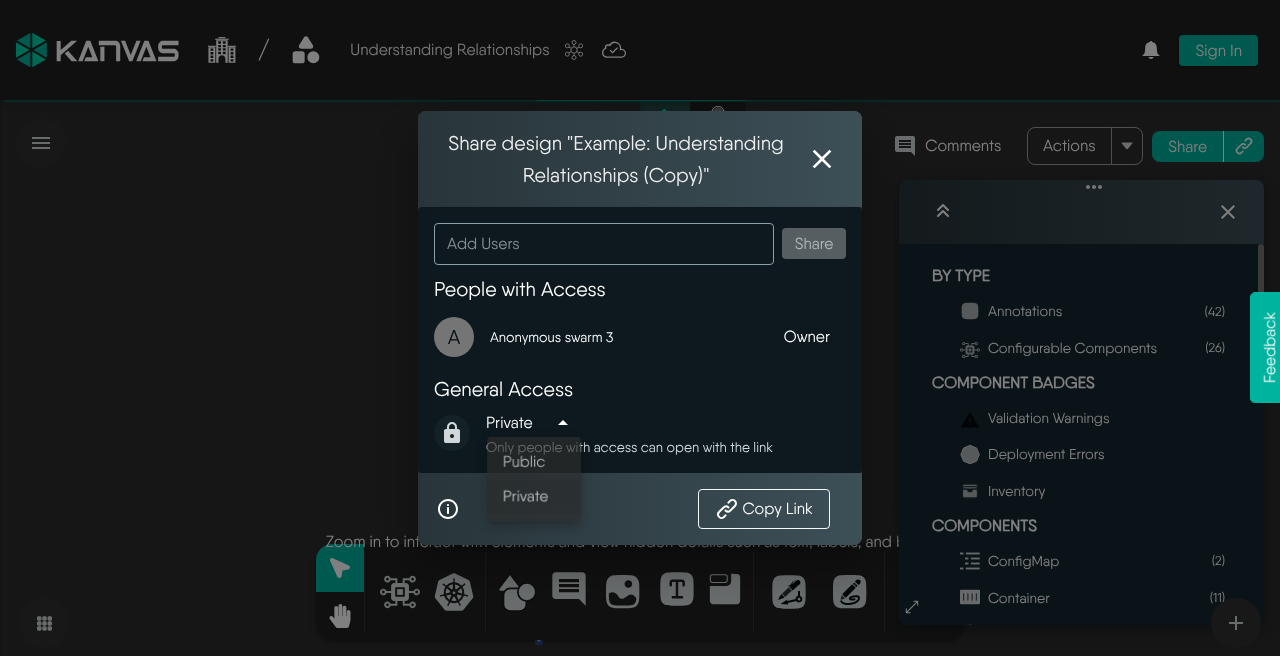
Private: Designs with visibility status private define only you, the creator, and the user or team that have access based on granted access permission can view and edit the design. Other users cannot access it unless you explicitly share it with them.1
Public: Making a design “Public” makes it accessible to anyone with the link or the design id, including anonymous visitors. Any signed-in user can edit a public design. A newly saved design is public, whatever visibility the client requests. Make a design private before you put sensitive architecture in it. A design cannot change visibility while it is published.
Why use public
Public status is useful for sharing designs broadly, for example, as open-source templates, public demonstrations, or for soliciting feedback from a wider community. If your goal is to share broadly only within your organization, consider using a combination of private designs shared with specific organization-wide teams or workspaces.- Published: The published visibility setting is designed for sharing designs with a wider audience. Published designs become discoverable to other users and allow them to view, download, and clone the design. Users can find published designs through Cloud Catalog (open catalog).
Granting access to individual users 🔗
When you share a design, those users or teams become collaborators. You can share your designs with other users by using the “Share” modal. This modal allows you to grant access to individual users or teams. The following steps show how you can grant access to individual users:
Accessing the “Share” Modal:
There are two primary ways to open the “Share” modal for a design:
From an Open design:
- First, open your Design or View in Kanvas.
- Click the main “Share” button, which is typically located in the top right corner of the editor interface.
From the Recent Designs list:
- Click the more options icon (often represented by three vertical dots ⋮) associated with that design.
- Select “Share” from the context menu that appears.
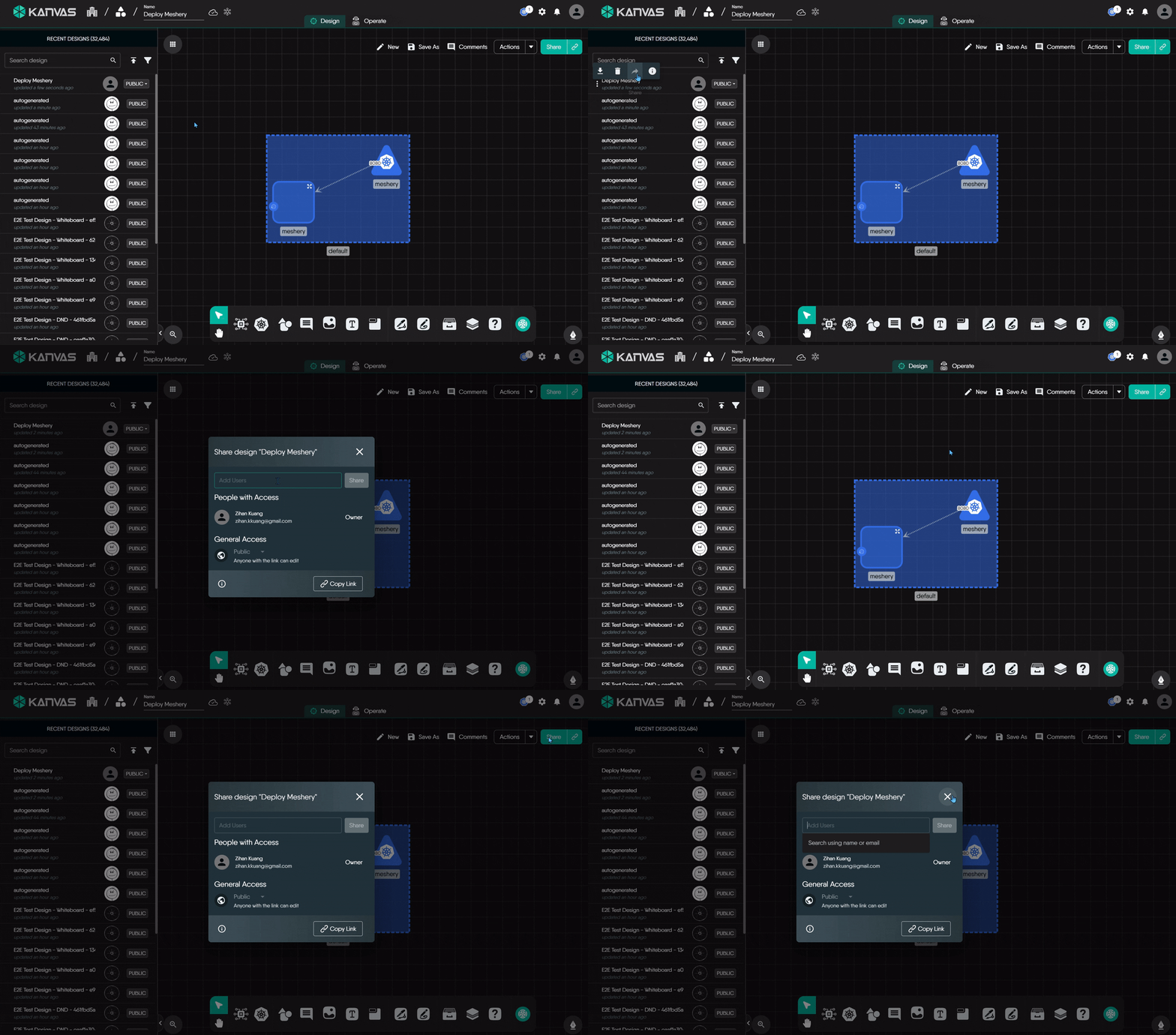
Once the “Share” modal is open, search for the person and add them. The search covers every user on Layer5 Cloud your role may search, not only your organization. It returns ten matches at a time and nothing for an empty search. The people picker uses the View All Users permission. Without it the search is rejected and the dialog does not find anyone. The dialog finds individual users only. From the “Share” modal, you can also change the overall visibility status of the design (switching between Private and Public).
Share is hidden while the design is empty or published, and while it is still loading. Kanvas checks the Share Design permission before it offers Share. Under the local provider, sharing returns HTTP 501 Not Implemented.

Owner vs. Collaborator 🔗
When you share a design, or when a design is shared with you, what you can do with it depends on whether you are the Owner or a Collaborator.
- Owner:
- You are the Owner if you created the design.
- As the Owner, you have complete control over your design. This includes:
- Viewing, editing, and modifying all aspects of the design.
- Deploying the design.
- Sharing the design with other users or teams (making them Collaborators) and revoking their access.
- Changing the design’s overall visibility (e.g., from Private to Public).
- Deleting the design.
Limitation: Ownership Transfer
transferring ownership of a design to another user is not currently supported in Kanvas.- Collaborator (Shared User/Team):
- When an Owner shares a design with you or your team, you become a Collaborator.
- As a Collaborator, you can actively work on the design. This typically means you can:
- View the design details.
- Modify configurations, add or remove components, and essentially edit the design’s content.
- Deploy the design.
- A collaborator cannot delete the design. Only the owner, or a provider administrator, can delete it. Ownership never transfers.
- Sharing the design onward, and revoking access, depend on the collaborator’s own Share Design permission, not on the grant. Most default organization admin roles include Share Design, so expect a collaborator to be able to share the design onward unless your organization has changed its roles.
- Layer5 Cloud does not restrict visibility changes to the owner. A person with a grant can switch the design between private and public.
How You Get Collaborator Access:
When an Owner shares a design, they add users or teams as Collaborators. Whether you are added individually or are part of a team that gains access, you receive the standard Collaborator permissions described above.
Managing Access: Revoking and Inviting
As the Owner of a design, you can manage who has access to it at any time using the “Share” modal. This allows you to:
- Grant access to new users or teams: Add them as Collaborators on your design.
- Revoke access from existing Collaborators: If someone no longer needs access, you can remove them.
For example, if Sarah is added as a Collaborator to a design, she can edit it. If the design is shared with the “Engineering Team” and Sarah is a member, she also gains the same Collaborator access to edit the design through her team membership.
Workspaces and teams do not open a private design
Adding a design to a workspace, and assigning teams to that workspace, does not open a private design to those teams. Layer5 Cloud checks the owner, provider administrators, and the design’s own grants. The Share dialog finds individual users only. Layer5 Cloud accepts a grant for a team through its API, but no access check honors it, so team members gain nothing from it. To give several people access, grant each person. Organization membership alone does not open a private design.Sharing Your Design with a Link 🔗
You can easily share a direct link to your design:
- Open the “Share” modal for your design.
- Click the “Copy Link” button. This button is always available, whether your design is Private or Public.
How the link works:
- For Private Designs: If your design is Private, copying and sending the link acts as a convenient pointer. However, the recipient must also be explicitly added as a Collaborator in the “Share” modal to be able to open and access the design. The link alone does not grant them access if they haven’t been given permission.
- For Public Designs: If your design’s visibility is set to Public, anyone with the link can typically access it according to the permissions defined for Public designs (as discussed in “Understanding visibility levels” – for example, they might be able to view, comment, and edit).
Link Sharing vs. Permissions
Using “Copy Link” is a quick way to direct people to your design, but remember that actual access is always controlled by the design’s visibility status (Private/Public) and the explicit permissions you’ve granted.Sharing with Multiple Users via Teams 🔗
You cannot give a whole team access with one grant. The Share dialog finds individual users only, and a team grant is not honored by the access check. Grant each member.
There are two primary ways to share designs with teams:
Direct Sharing via the “Share” Modal:
- You can add a team as a Collaborator directly through the design’s “Share” modal, similar to how you add individual users. This gives the team explicit access to that specific design.2
Indirect Sharing via Workspace Association (Intended Mechanism):
- Another way access is intended to be managed for teams is through Workspaces. The general idea is:
- Place your design (e.g., a Private Design) into a Workspace.
- Assign one or more Teams to that same Workspace.
- By this association, members of the assigned Team(s) should then inherit access to the designs within that Workspace, including Private designs.
- Another way access is intended to be managed for teams is through Workspaces. The general idea is:
Learn more about auditing the access permission within workspace
Share and visibility notifications 🔗
Kanvas surfaces explicit notifications when a share or visibility action cannot complete. These messages replace earlier silent failures so you can tell success apart from an incomplete request.
| Situation | What you see | What to do |
|---|---|---|
| You change visibility on a resource kind that does not support a visibility mutation | A notification that the visibility change is unsupported for that resource (not a success message) | Keep the resource’s current visibility, or use a resource kind that supports Private / Public / Published transitions. |
| You click Share while the design or view body is still loading, or after the body failed to load | A notification that sharing is unavailable | Wait until the resource finishes loading, then open Share again. If the body failed to load, refresh or reopen the resource and retry once it loads successfully. |
| The Share modal cannot load the access list | A notification that the access list failed to load, instead of an empty collaborator list | Close and reopen Share, or refresh the page. Do not assume that an empty list means nobody has access—until the list loads, the owner row and existing grants may be hidden, which also blocks revoke actions. |
People with Access is authoritative
After any grant or revoke, confirm the result in People with Access before you rely on the change. A success path updates that list; if the list did not load or the expected user is missing, treat the share as incomplete and retry.This functionality is not fully implemented yet. Users might occasionally observe that even when a team is assigned to a workspace, members of that team may not be able to access private designs within that workspace without explicit individual or team-level sharing for the design itself. ↩︎
This feature (direct sharing with teams via the “Share” modal) is not yet fully implemented and is planned for a future update. ↩︎
Related Reading


Recent Discussions on Kanvas
- Jul 12 | Unleash Visual Power: Import Your Configs by zihan kuang
- Oct 14 | Explore Meshery's Published Relationship Design Examples by Awani Alero
- Oct 03 | Design Review RFC: Kanvas Empty State Enhancement by Lee Calcote
- Jul 19 | [For Discussion] Visual indication of semantically vs non-semantically meaningful Meshery components by Lee Calcote
- Jun 07 | What are the conditions for a "System is unhealthy" warning? by James
- May 30 | Looking for a meshmate to help with first PR by Faisal Imtiyaz123
- Feb 28 | For Discussion: Capturing potential, but unrealized Relationships in Design Snapshots by Lee Calcote
- Feb 12 | Hint on Scaling & Verifying Cronjob in Playground by Sandra Ashipala