# Publishing to Catalog
> Publish a Kanvas design to the Catalog from Details, understand visibility versus publish, and know what happens during review and approval.
Publishing a design submits it to the [Layer5 Cloud Catalog](https://cloud.layer5.io/catalog) so others can discover, view, and clone it. In Kanvas Designer, the primary publish action lives in **Details**, not in the Share modal.
Share controls **who can open and edit** your working design (**Private / Public**, invites, **Copy Link**). Publish moves a design through the **catalog publication** lifecycle (pending review → published). For the full state machine, roles, and FAQs, see [Publishing Designs](/kanvas/designer/publishing-designs/).
## What you will do
1. Open design **Details** and locate **Publish to Catalog**
2. Fill publish metadata (type, technology, description, caveats)
3. Submit and understand pending review vs immediate publish
4. Know how Published differs from Public, and what you can change afterward
## Prerequisites
- Signed in to Layer5 Cloud (GitHub, Google, or email) — **Publish to Catalog** is disabled for anonymous / some private sample sessions
- A design you own in [Kanvas Designer](https://kanvas.new)
- Permission to submit designs for catalog review in your organization
Share is not Publish
Share = Add Users, People with Access, Private/Public, Copy Link. Details → Publish to Catalog = submit the design to the public Catalog workflow.
Making a design Public does not publish it to the Catalog.
## Step 1: Open your design
1. Open [kanvas.new](https://kanvas.new) in **Designer**.
2. Create or open the design you want to publish.
3. Optionally validate the design (**Actions → Validate**) and tidy the canvas so catalog clones look intentional.
## Step 2: Open Details
Open design details from either:
1. **File → Details**, or
2. The design info / details entry point in the designer chrome (when available)
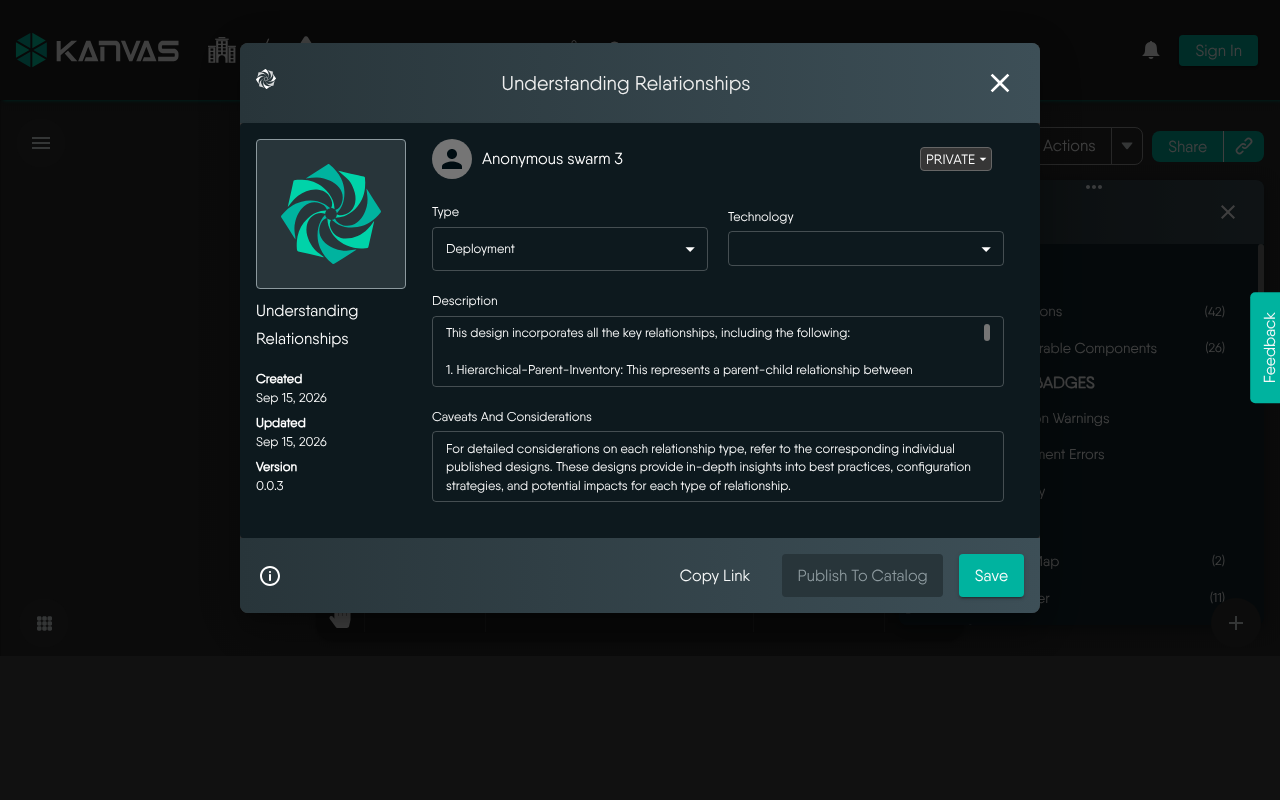
In the Details dialog you will typically see fields such as name, owner, visibility, type, technology, description, caveats, dates, and version — plus actions including **Copy Link**, **Publish to Catalog**, and **Save**.
Details dialog: metadata fields and Publish to Catalog (primary publish entry point)
If **Publish to Catalog** is greyed out:
- Sign in if you are anonymous
- Confirm you own the design (or have submit permission)
- Ensure the design has finished loading
## Step 3: Complete publish metadata
When you choose **Publish to Catalog**, provide catalog metadata (labels may match the Details fields):
| Field | Purpose |
|-------|---------|
| **Type** | Design category for catalog browsing |
| **Technology** | Related technology / stack |
| **Description** | What the design is for and how to use it |
| **Caveats** | Limitations, assumptions, or operational warnings |
Write the description and caveats for someone cloning the design cold — they will not have your workspace context.
## Step 4: Submit and wait for review
Approval depends on role (see [Publishing Designs](/kanvas/designer/publishing-designs/)):
- **Admin submissions** — may publish immediately
- **Regular user submissions** — enter **Pending Review** until an Organization Admin or Provider Admin approves or rejects
While pending:
- You can usually still edit the design; changes apply to the submission without re-filing
- Avoid deleting a pending design (can leave dead entries in approval queues)
- You should receive an email when the decision is made
After **approval**:
- The design becomes **Published** and appears in the [Catalog](https://cloud.layer5.io/catalog)
- Published content is treated as **immutable** for catalog consistency — clone to create a new editable version
- It may no longer appear the same way under personal “My Designs” lists
After **rejection**:
- You cannot simply resubmit the same entry
- **Clone** the design, revise, and submit as a new catalog entry
## Step 5: Visibility vs Catalog publish (cheat sheet)
| State | Meaning | Editable? |
|-------|---------|-----------|
| **Private** | Limited to owner + explicit grants | Yes |
| **Public** | Reachable via link / public channels; still your working design | Yes |
| **Published** | Approved Catalog entry; discoverable to clone | Original locked; clone to modify |
Unpublish (when available) is limited to Owner / Admin roles — not guests or typical collaborators.
## Optional path: Share while preparing to publish
You can share a design for internal review **before** catalog publish:
1. Use **Share** to invite reviewers (**Private** + **People with Access**)
2. Collect feedback with [Comments](/kanvas/designer/comments/)
3. When ready, use **Details → Publish to Catalog**
That keeps pre-publish collaboration separate from the Catalog approval workflow. See also [Collaborative Editing](/kanvas/tutorials/collaborative-editing/).
## Recap
1. Open the design in Designer
2. **File → Details**
3. Click **Publish to Catalog** and complete metadata
4. Await review (unless you are an admin with immediate publish)
5. After approval, find it in the Catalog; clone to iterate
## Related reading
- [Publishing Designs](/kanvas/designer/publishing-designs/) — lifecycle, permissions, FAQ
- [Sharing Designs](/kanvas/designer/sharing/) — Private / Public / invites
- [Cloud Catalog concepts](/cloud/concepts/catalog/)
- Tutorial: [Collaborative Editing](/kanvas/tutorials/collaborative-editing/)