Publishing to Catalog
Publishing a design submits it to the Layer5 Cloud Catalog so others can discover, view, and clone it. In Kanvas Designer, the primary publish action lives in Details, not in the Share modal.
Share controls who can open and edit your working design (Private / Public, invites, Copy Link). Publish moves a design through the catalog publication lifecycle (pending review → published). For the full state machine, roles, and FAQs, see Publishing Designs.
What you will do 🔗
- Open design Details and locate Publish to Catalog
- Fill publish metadata (type, technology, description, caveats)
- Submit and understand pending review vs immediate publish
- Know how Published differs from Public, and what you can change afterward
Prerequisites 🔗
- Signed in to Layer5 Cloud (GitHub, Google, or email) — Publish to Catalog is disabled for anonymous / some private sample sessions
- A design you own in Kanvas Designer
- Permission to submit designs for catalog review in your organization
Share is not Publish
Share = Add Users, People with Access, Private/Public, Copy Link.Details → Publish to Catalog = submit the design to the public Catalog workflow.
Making a design Public does not publish it to the Catalog.
Step 1: Open your design 🔗
- Open kanvas.new in Designer.
- Create or open the design you want to publish.
- Optionally validate the design (Actions → Validate) and tidy the canvas so catalog clones look intentional.
Step 2: Open Details 🔗
Open design details from either:
- File → Details, or
- The design info / details entry point in the designer chrome (when available)
In the Details dialog you will typically see fields such as name, owner, visibility, type, technology, description, caveats, dates, and version — plus actions including Copy Link, Publish to Catalog, and Save.
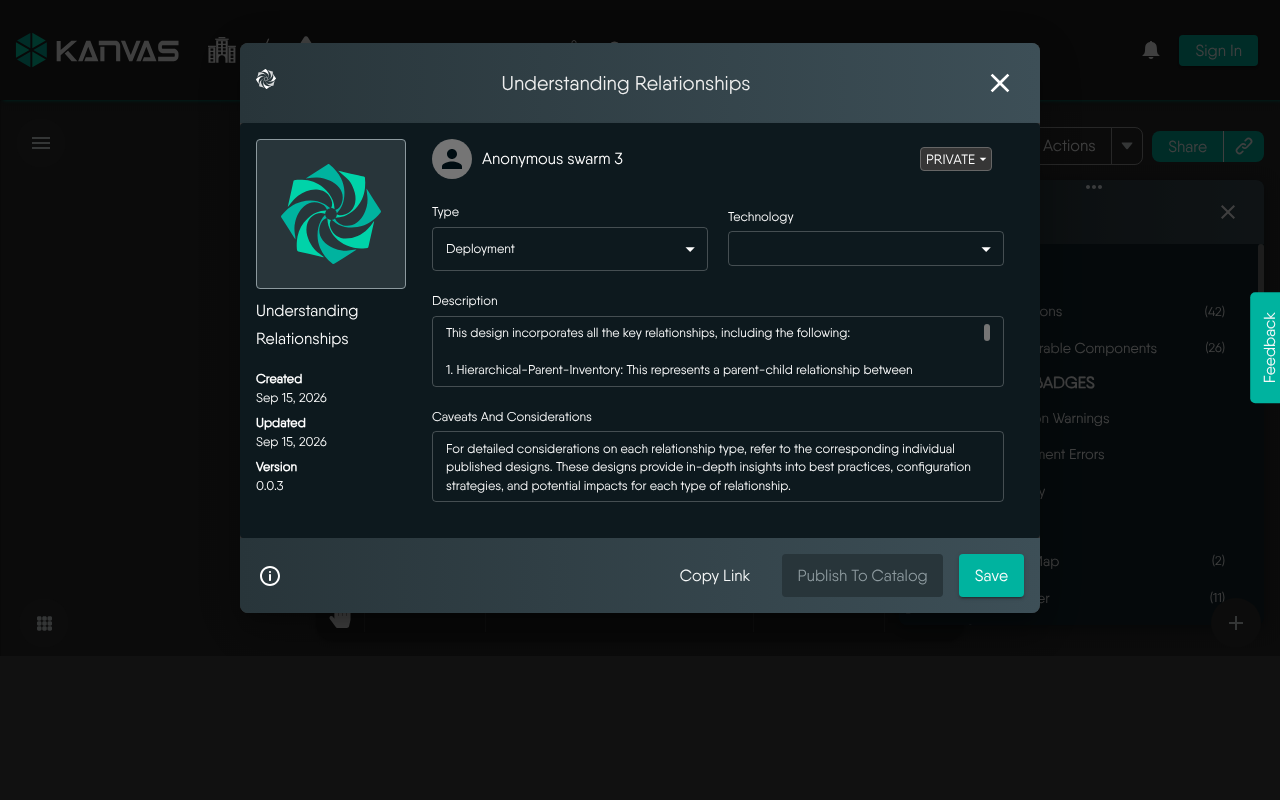
If Publish to Catalog is greyed out:
- Sign in if you are anonymous
- Confirm you own the design (or have submit permission)
- Ensure the design has finished loading
Step 3: Complete publish metadata 🔗
When you choose Publish to Catalog, provide catalog metadata (labels may match the Details fields):
| Field | Purpose |
|---|---|
| Type | Design category for catalog browsing |
| Technology | Related technology / stack |
| Description | What the design is for and how to use it |
| Caveats | Limitations, assumptions, or operational warnings |
Write the description and caveats for someone cloning the design cold — they will not have your workspace context.
Step 4: Submit and wait for review 🔗
Approval depends on role (see Publishing Designs):
- Admin submissions — may publish immediately
- Regular user submissions — enter Pending Review until an Organization Admin or Provider Admin approves or rejects
While pending:
- You can usually still edit the design; changes apply to the submission without re-filing
- Avoid deleting a pending design (can leave dead entries in approval queues)
- You should receive an email when the decision is made
After approval:
- The design becomes Published and appears in the Catalog
- Published content is treated as immutable for catalog consistency — clone to create a new editable version
- It may no longer appear the same way under personal “My Designs” lists
After rejection:
- You cannot simply resubmit the same entry
- Clone the design, revise, and submit as a new catalog entry
Step 5: Visibility vs Catalog publish (cheat sheet) 🔗
| State | Meaning | Editable? |
|---|---|---|
| Private | Limited to owner + explicit grants | Yes |
| Public | Reachable via link / public channels; still your working design | Yes |
| Published | Approved Catalog entry; discoverable to clone | Original locked; clone to modify |
Unpublish (when available) is limited to Owner / Admin roles — not guests or typical collaborators.
Optional path: Share while preparing to publish 🔗
You can share a design for internal review before catalog publish:
- Use Share to invite reviewers (Private + People with Access)
- Collect feedback with Comments
- When ready, use Details → Publish to Catalog
That keeps pre-publish collaboration separate from the Catalog approval workflow. See also Collaborative Editing.
Recap 🔗
- Open the design in Designer
- File → Details
- Click Publish to Catalog and complete metadata
- Await review (unless you are an admin with immediate publish)
- After approval, find it in the Catalog; clone to iterate
Related reading 🔗
- Publishing Designs — lifecycle, permissions, FAQ
- Sharing Designs — Private / Public / invites
- Cloud Catalog concepts
- Tutorial: Collaborative Editing
Related Reading
- Building a GCP Data Pipeline Design
- Collaborative Editing
- Cross-Org Design Access: stellar-saas-platform
- Publishing Designs
- Canvas Actions
- Cloning a Design


Recent Discussions on Kanvas
- Jul 12 | Unleash Visual Power: Import Your Configs by zihan kuang
- Oct 14 | Explore Meshery's Published Relationship Design Examples by Awani Alero
- Oct 03 | Design Review RFC: Kanvas Empty State Enhancement by Lee Calcote
- Jul 19 | [For Discussion] Visual indication of semantically vs non-semantically meaningful Meshery components by Lee Calcote
- Jun 07 | What are the conditions for a "System is unhealthy" warning? by James
- May 30 | Looking for a meshmate to help with first PR by Faisal Imtiyaz123
- Feb 28 | For Discussion: Capturing potential, but unrealized Relationships in Design Snapshots by Lee Calcote
- Feb 12 | Hint on Scaling & Verifying Cronjob in Playground by Sandra Ashipala