Collaborative Editing
Kanvas Designer supports team collaboration on infrastructure designs: you can share access, control who can open a design, review with inline comments, and work alongside teammates when they join the same design. This tutorial walks through a practical share-and-review flow on kanvas.new.
For deeper reference, see Sharing Designs and Reviewing Designs.
What you will do 🔗
- Open a design in Designer and share it
- Choose Private or Public visibility and invite people
- Copy a share link and verify People with Access
- Leave comments for design review
- Set honest expectations for live collaborators (cursors / presence)
Prerequisites 🔗
- Access to Kanvas Designer (anonymous browsing works for Share on Designer; sign in for full identity, invites, and catalog flows)
- A design you own or can edit (clone a sample design if you are starting fresh)
- Optional: a teammate’s Layer5 Cloud username or email to invite
Designer vs Operator Share
This tutorial covers Designer designs. Designer Share works for anonymous sessions on hosted Kanvas. Operator view Share can fail when no Kubernetes context / view is loaded — do not assume the same share UX in Operator.Step 1: Open your design in Designer 🔗
- Go to kanvas.new and open Designer (center mode toggle).
- Open an existing design from File → Open…, or clone a sample design and rename it.
- Confirm the design name and autosave indicator appear in the top bar.
You are ready to share when the canvas has loaded and the top-bar Share control is available.
Step 2: Open Share and review access 🔗
Open the Share modal in either of these ways:
- Click Share in the Designer top bar (near Comments and Actions), or
- Open File and choose Share
In the Share modal you should see:
- Add Users — invite people by name or email
- People with Access — authoritative list of who can open the design
- Private / Public — overall visibility
- Copy Link — shareable URL to the design
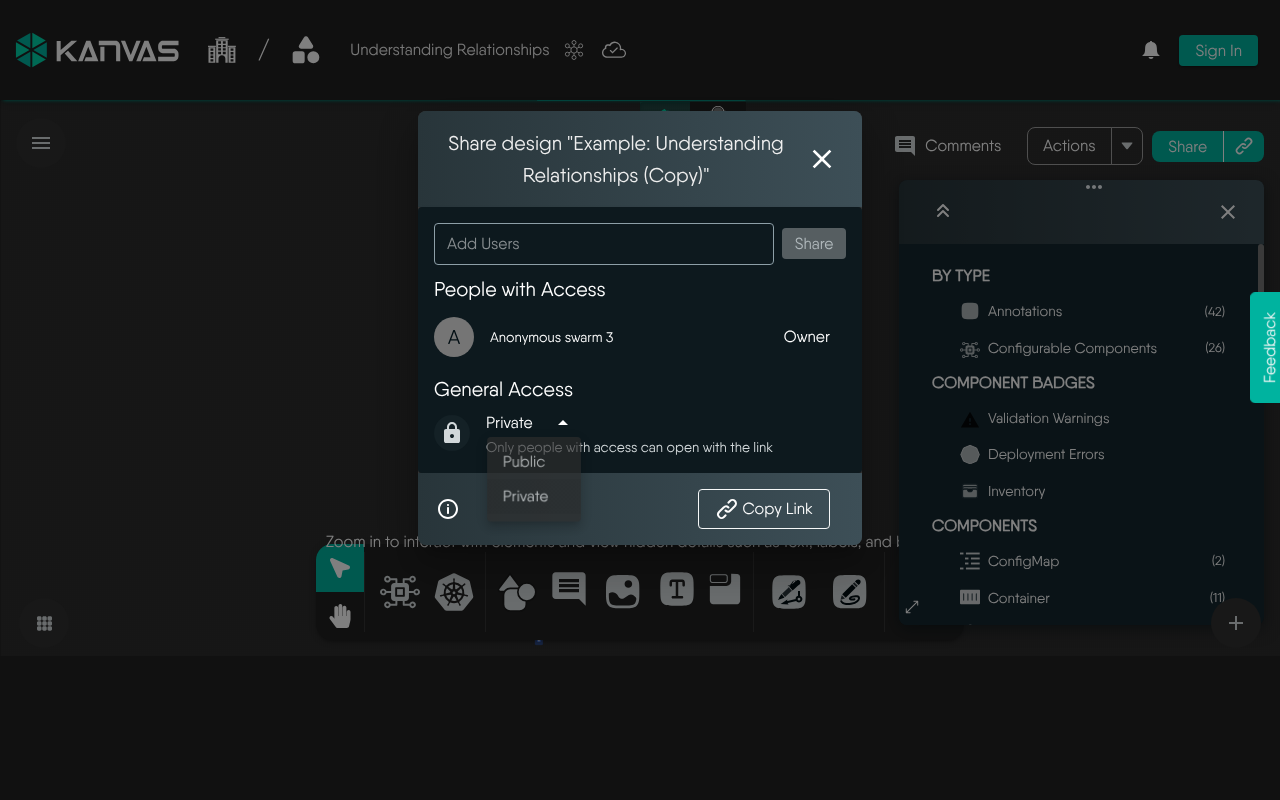
People with Access is the source of truth
After every grant or revoke, re-open Share and confirm the People with Access list. Treat that list as authoritative — do not rely on a toast alone. See Sharing Designs.Step 3: Set visibility (Private vs Public) 🔗
Choose visibility that matches how broadly you want the design reachable:
| Visibility | Who can reach it | Typical use |
|---|---|---|
| Private | You (owner) plus people or teams you explicitly grant | Drafts, internal review, limited collaboration |
| Public | Anyone with the link (and discoverable public channels) | Broad feedback, demos, open templates |
Notes:
- Copy Link works for both Private and Public designs.
- For Private designs, the link alone is not enough — recipients must also appear under People with Access.
- Published (Catalog) is a separate lifecycle from Private/Public share. Publishing is covered in Publishing to Catalog and Publishing Designs.
Step 4: Invite collaborators 🔗
- In Add Users, type a username or email and select the person (or team, when available).
- Confirm they appear under People with Access.
- Optionally Copy Link and send it so they can open the design quickly.
Owner vs collaborator capabilities (summary):
- Owner — full control: edit, share, change visibility, delete
- Collaborator — can view and edit the design content; cannot delete the design, re-share it, or change overall visibility
Full detail: Sharing Designs — Owner vs Collaborator.
Step 5: Review with comments 🔗
Comments are the primary async review tool on the canvas.
- Open the Comments panel from the top bar, or use the Comments tool on the bottom dock.
- Add a comment via the dock, context-click → Add a Comment, or the hotkey.
- Pin feedback to a specific component or canvas area; use
@mentions when you need someone’s attention. - Resolve threads when discussion is done (prefer resolve over delete so history remains).
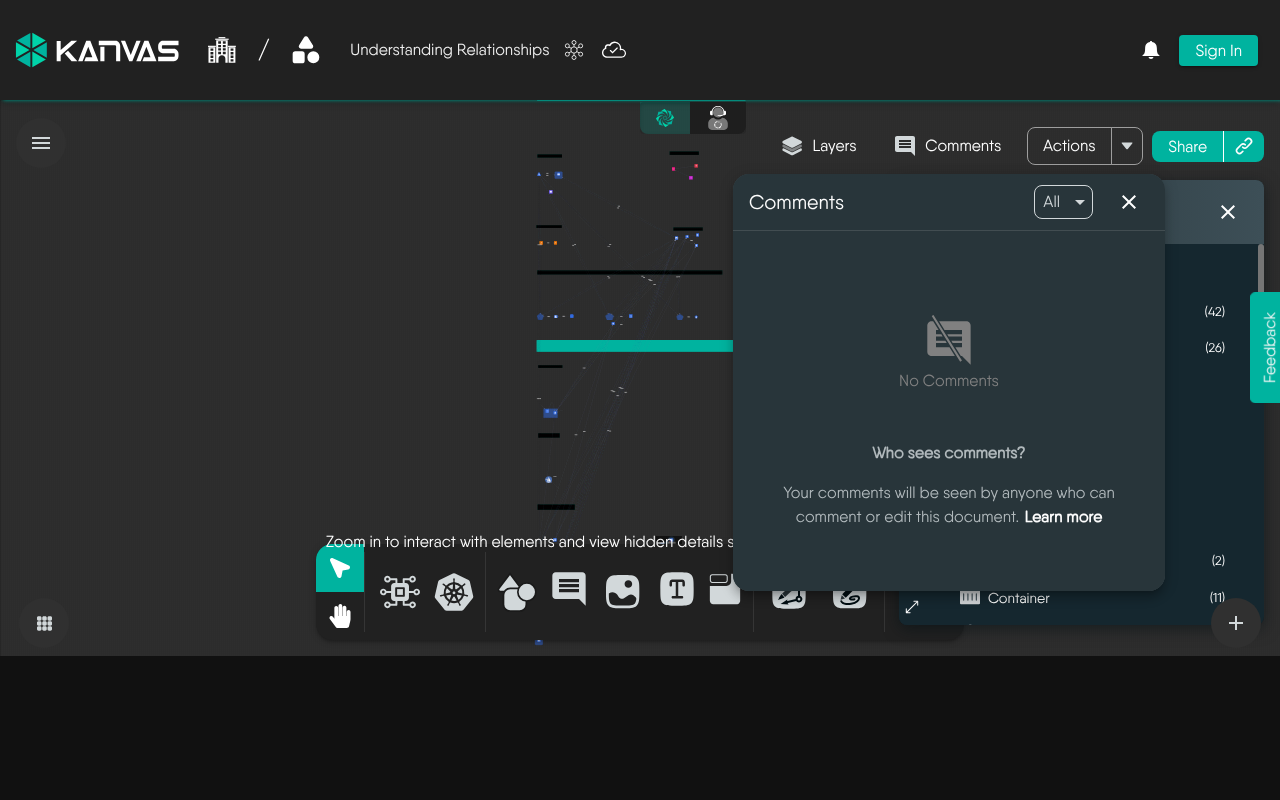
Deep dive: Reviewing Designs.
Step 6: Live collaborators — what to expect 🔗
Kanvas includes real-time collaboration in the product (presence / awareness cursors and join-leave signaling via Cloud collaboration). When another collaborator has the same design open:
- You may see collaborator avatars or presence indicators in the designer chrome
- Live peer cursors can appear on the canvas while others edit
Live multiplayer cursors
Peer cursors require other signed-in collaborators on the same design. An anonymous solo session will not show multiplayer cursors. Do not treat marketing multi-cursor imagery as a guarantee of what you will see in every session.Practical tips while collaborating live:
- Agree who owns structural changes (large layout moves) vs configuration edits.
- Use comments for decisions that should persist after the session.
- Re-check People with Access if someone cannot open the design.
- Prefer Private + explicit invites for sensitive architectures; use Public only when link-wide access is intentional.
Recap 🔗
| Goal | Where in Kanvas |
|---|---|
| Invite people / set Private·Public / copy link | Top bar Share (or File → Share) |
| Confirm grants | Share → People with Access |
| Async review | Comments panel / dock / |
| Catalog publish (separate from Share) | File → Details → Publish to Catalog |
Related reading 🔗
Related Reading
- Reviewing Designs
- Building a GCP Data Pipeline Design
- Cross-Org Design Access: stellar-saas-platform
- Publishing to Catalog
- Sharing Designs
- Working with Tags


Recent Discussions on Kanvas
- Jul 12 | Unleash Visual Power: Import Your Configs by zihan kuang
- Oct 14 | Explore Meshery's Published Relationship Design Examples by Awani Alero
- Oct 03 | Design Review RFC: Kanvas Empty State Enhancement by Lee Calcote
- Jul 19 | [For Discussion] Visual indication of semantically vs non-semantically meaningful Meshery components by Lee Calcote
- Jun 07 | What are the conditions for a "System is unhealthy" warning? by James
- May 30 | Looking for a meshmate to help with first PR by Faisal Imtiyaz123
- Feb 28 | For Discussion: Capturing potential, but unrealized Relationships in Design Snapshots by Lee Calcote
- Feb 12 | Hint on Scaling & Verifying Cronjob in Playground by Sandra Ashipala