Importing a Design
Categories:
Kanvas acts as a powerful bridge, enabling you to import your existing application and infrastructure configurations from a wide variety of standard formats. It transforms these configurations into visual, editable, deployable, and shareable designs. This guide covers how to import designs, the supported formats, and important considerations.
Accessing the Import Functionality 🔗
There are multiple ways to import a design.
You can drag a file from your local computer directly onto the Kanvas canvas to import a design.
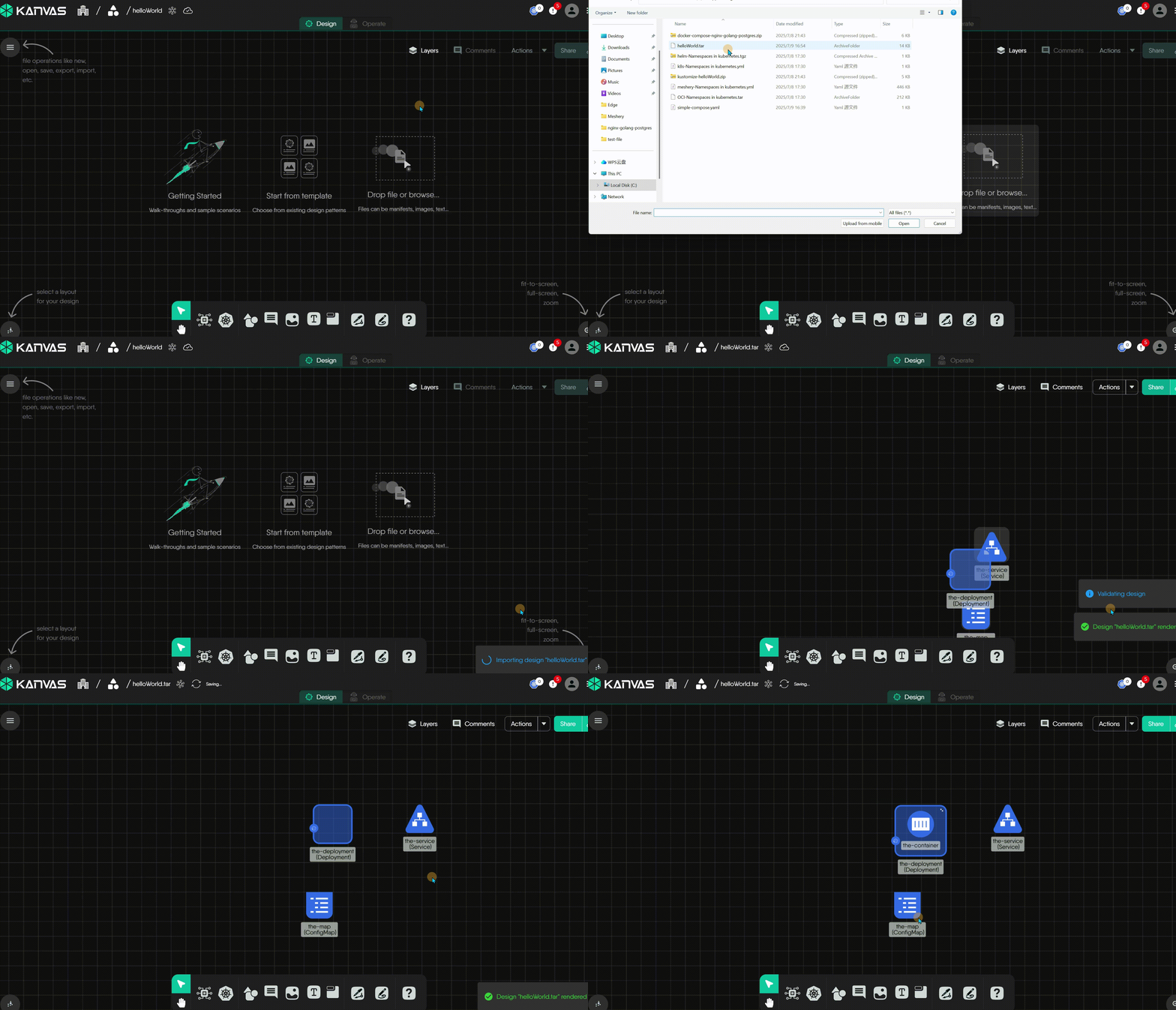
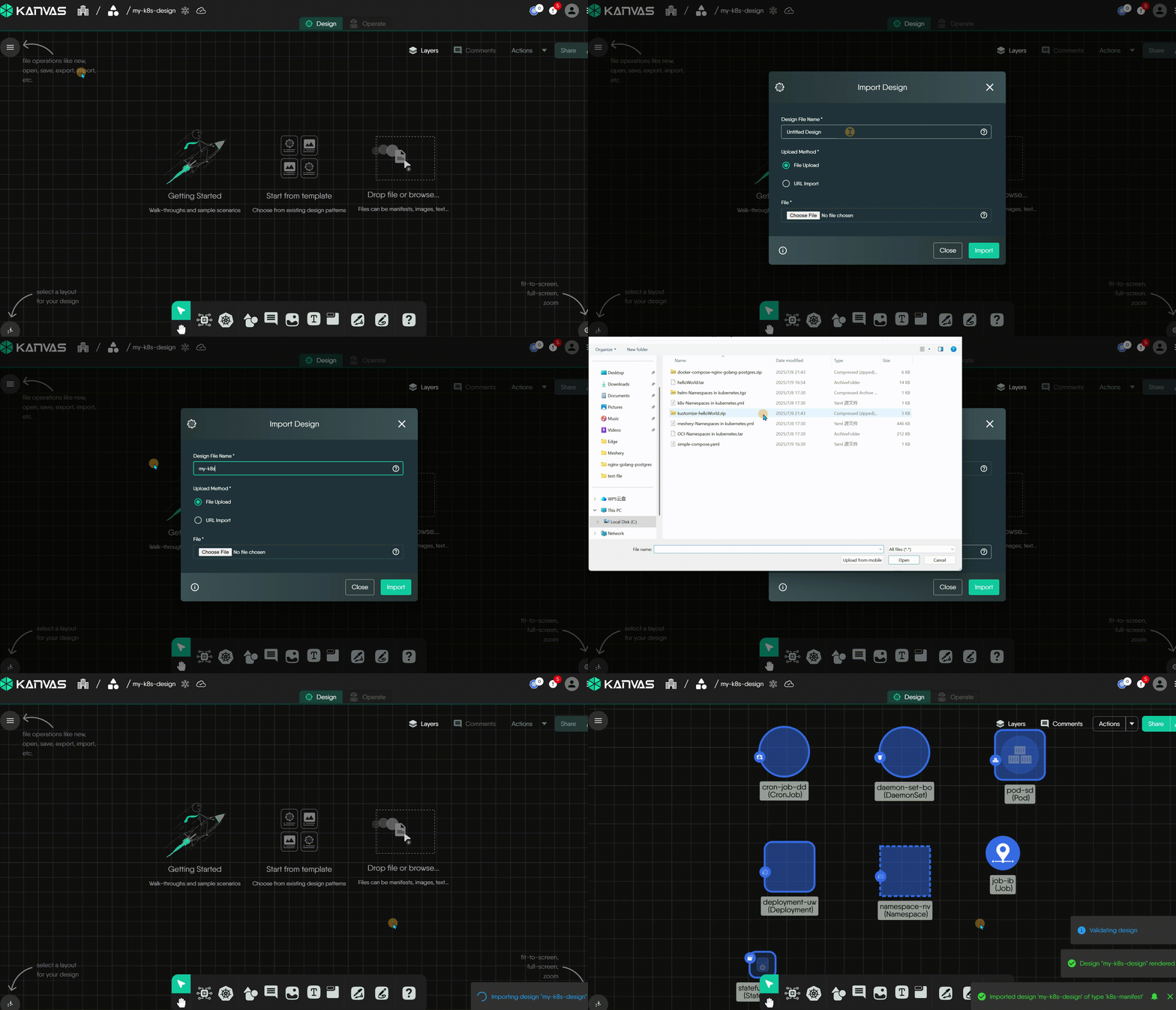
The most direct method is to click the hamburger menu (☰) in the top-left corner, then select the “Import” button in the Kanvas toolbar.
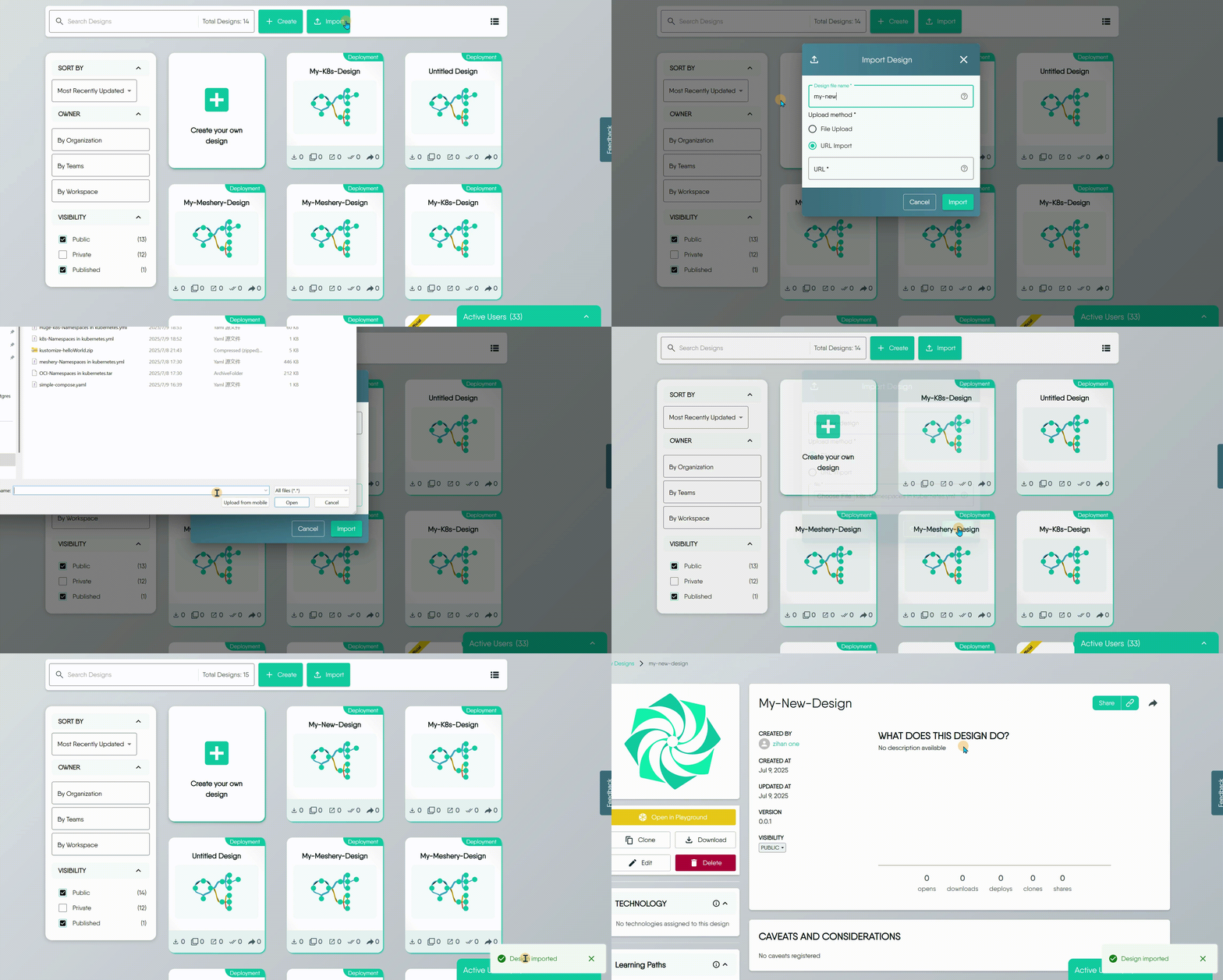
Navigate to the My Designs page and click the “Import” button.
For a more advanced, repository-based workflow, you can establish a persistent connection between your GitHub account and Meshery. This allows you to browse your repositories and import multiple designs directly.
Learn more about GitHub integration.
Recommendation: Use Kanvas Import
For the most flexibility, we recommend initiating the import from within Kanvas. This interface gives you the option to either import the configuration as a brand-new design or merge it into a design you currently have open.Importing by Infrastructure Type 🔗
Kanvas supports a diverse set of infrastructure types and packaging formats. The following sections provide detailed requirements and instructions for each.
Cannot Import Folders Directly
You can’t directly import folders. If your infrastructure definition (like Kustomize or Helm) is in a folder, you must compress it into a single archive file before uploading.Importing from a Kubernetes manifest is the most direct way to bring your existing configurations into Kanvas. This method is suitable for any standard .yaml or .yml file that conforms to the Kubernetes API specification, as well as for projects managed by Kustomize.
1. Importing Plain Kubernetes Manifests: If you have Kubernetes configurations available as standard manifest files, you can import them directly.
- Supported Packaging Formats: A standard
.yamlor.ymlfile containing one or more Kubernetes resource definitions.
2. Importing a Kustomize Project: If you manage your Kubernetes configurations with Kustomize, a popular template-free tool for customization, you can import your entire project.
A key requirement when importing a Kustomize project is that you must provide the entire project directory, not just the kustomization.yaml file. This is because the kustomization.yaml file only contains instructions and references to other base manifest files. To correctly render the final configuration, Kanvas needs access to all of these related files.
- Supported Packaging Formats: A archive (such as
.zip,.tar, or.tar.gz) containing the complete Kustomize project directory. This archive must include thekustomization.yamlfile and all of its referenced resources.
Helm is the standard package manager for Kubernetes. Importing a Helm chart into Kanvas allows you to visualize, manage, and customize complex applications. To ensure a successful import, you must provide the complete packaged chart. Importing individual chart files like Chart.yaml or values.yaml is not supported.
- Supported Packaging Formats:
- Chart Archive (
.tgz,.tar, or.tar.gz): The standard gzipped tarball format for distributing Helm charts. - OCI image archive: A
.tar,.tgz,.tar.gz, or.zipwhose layers contain a Meshery design file. Only the first design in the archive is taken. An archive with no design file fails. Anoci://reference, a Helm repository URL, a git clone URL, a directory, and pasted text are not import sources. An uncompressed.tarHelm chart is reported as needing gzip. Values overrides are not an import option. Individual chart files such asChart.yamlcannot be imported.
- Chart Archive (
This import method provides a convenient bridge for developers looking to migrate their applications from a local Docker-based environment to Kubernetes. Kanvas will parse your docker-compose.yaml file and automatically translate your services into their equivalent Kubernetes resources.
- Supported Packaging Formats: A standard
.yamlor.ymlfile. Compose services are converted to Kubernetes resources, so the design contains Kubernetes components. Aversionkey is not required.
This is Meshery’s native format and provides a lossless way to save and import your designs. It preserves all of an application’s component configurations as well as the visual layout, annotations, and metadata from the Kanvas designer.
- Supported Packaging Formats:
- YAML File (
.yml): The standard, human-readable file generated when you export a design. - OCI Artifact: Designs can also be packaged as OCI artifacts, allowing them to be versioned and distributed via container registries.
- YAML File (
Frequently Asked Questions 🔗
What happens if I drag and drop multiple files onto Kanvas at once?
Each supported file will be imported as a separate, new design. For example, if you drag three different Kubernetes manifest files onto Kanvas, three distinct designs will be created.
What happens if I select multiple files in the File Upload dialog?
The “File Upload” dialog processes one file at a time. Dropping several files on the canvas imports each as a separate design.
After importing a file, can I download my original, unaltered file?
A File Upload or URL Import does not keep the original file, so exporting later produces a new file from the current design. A GitHub import is different: each file becomes a private design named after the file. The design records the repository and file path it came from, and the imported file itself is stored with the design. GitHub imports read each file from the repository’s default branch. The stored file is not offered for download, so exporting still produces a new file from the current design. Re-importing, refreshing, and viewing that source are covered in Connect GitHub. Invalid files in a GitHub selection are reported per path and do not stop valid files from importing.
For more details, see the Exporting Designs guide.
When I import from a Kubernetes manifest, Helm chart, or other type, and choose to merge this file into an existing design, can I download my original file?
When you choose to merge a new design into an existing one, Meshery first creates a separate design from your imported file before performing the merge. You can find this newly created design on your My Designs page.
Are there any differences, limitations, or special requirements for importing via File Upload, URL, or the GitHub Integration?
Yes. File Upload and URL Import are simple, one-time actions for importing a single design. In contrast, the GitHub Integration creates a deep, persistent connection to your GitHub account.
It requires you to authorize the Meshery GitHub App, which then allows you to browse your repositories and select designs directly from the Meshery UI. Most importantly, this integration can enable a GitOps workflow by adding a GitHub Action to your repository that provides visual snapshots of design changes in your pull requests.
Can I import a design from GitLab or Bitbucket?
Not as a repository connection. GitHub is the only source-code host Meshery integrates with directly: it is the only repository connection kind the platform defines, and the import form itself offers just two upload methods, File Upload and URL Import.
You can still bring in a design that lives in GitLab or Bitbucket, by either route:
- URL Import - give the import form a direct URL to the raw file. It must serve the file body itself, not a web page that renders it, and it must be reachable from the public internet.
- File Upload - download the file from your repository first, then upload it. This is the route to use for a self-hosted or otherwise private GitLab or Bitbucket server, which Meshery cannot reach.
What you do not get on either route is the persistent, repository-wide connection the GitHub integration provides - browsing repositories from the Meshery UI, and the GitOps workflow that posts visual snapshots of design changes onto pull requests.
Is there a file size limit for imported designs?
The import dialog has no client-side size limit on a local file. A URL import is limited to a 16 MiB body, 5 redirects, 10 seconds to connect, and 30 seconds for the request. Only http and https are allowed, checked again on every redirect. Destinations that resolve to loopback, private, or link-local addresses are refused.
The components-per-design plan limit applies to URL imports and to every save: Personal 100, Team Designer 200, Team Operator 100, Enterprise 300. GitHub imports are not checked at import time. They are checked the first time the design is saved. Every failed import shows the same message, Failed to import design "<name>". Nothing is saved when the server rejects the file. A failed merge shows Failed to merge design: <reason>.
Images and .txt files dropped on the canvas become canvas objects, not designs, and files over 500 KB are rejected whatever your plan. Archive types RAR and 7Z pass the drop check but fail at import. Other file types are ignored without a message.
The imported design is owned by you, placed in your selected workspace, public, at version 0.0.1, and records its detected source type. GitHub imports are the exception and are private. The import dialog takes a name of 1 to 255 characters, default “Untitled Design”. Names are not required to be unique. If you leave the name empty, Kanvas uses the name inside the file, and drops use the file name. Import is hidden in Operator mode.
Learn more about plans.
Related Reading
- Canvas Actions
- Cloning a Design
- Configuring Components
- Creating Relationships
- Deleting a Design
- Deploying Designs


Recent Discussions on Kanvas
- Jul 12 | Unleash Visual Power: Import Your Configs by zihan kuang
- Oct 14 | Explore Meshery's Published Relationship Design Examples by Awani Alero
- Oct 03 | Design Review RFC: Kanvas Empty State Enhancement by Lee Calcote
- Jul 19 | [For Discussion] Visual indication of semantically vs non-semantically meaningful Meshery components by Lee Calcote
- Jun 07 | What are the conditions for a "System is unhealthy" warning? by James
- May 30 | Looking for a meshmate to help with first PR by Faisal Imtiyaz123
- Feb 28 | For Discussion: Capturing potential, but unrealized Relationships in Design Snapshots by Lee Calcote
- Feb 12 | Hint on Scaling & Verifying Cronjob in Playground by Sandra Ashipala