 Subscription:
Whiteboarding
Categories:
Whiteboarding in Kanvas (3:41) follows one late-night incident from page to postmortem on a single live design. Its page has chapters and a transcript.
The whiteboarding feature introduces versatile, freestyle drawing capabilities within Kanvas. Whiteboarding is enabled by default for all users and augments your ability to diagram with a suite of predefined shapes, and pen and pencil annotation, allowing you full freedom of expression of your engineering diagrams.
Looking for a specific operation?
This page introduces whiteboarding and the drawing tools. For the per-object operations - adding, copying, cloning, locking, deleting, styling, resetting styles and resizing shapes, sections and textboxes - see Working with Canvas Objects.Key Functionality 🔗
- Drawing Tools Integration
- Incorporates a comprehensive set of drawing tools resembling popular whiteboard applications.
- Enables you to draw shapes, group components , annotate, and highlight specific elements within the infrastructure design canvas.
- Real-time Collaboration
- Facilitates simultaneous collaboration among multiple users within the tool.
- Supports live editing and instant visualization of changes made by collaborators.
- Non-Invasive Annotations
- Annotations, shapes, or drawings created within the tool remain separate visual aids, not altering the actual infrastructure components.
Using the Whiteboard Tools 🔗
Whiteboarding is on by default in every design. Its tools wait in the dock at the bottom of the Designer canvas: shapes, comments, images, sections, and the pen and pencil. The pencil draws freeform notes without connecting components, and the pen - Connector mode, Command+E or Ctrl+E - draws annotation edges that explain relationships and flow. See Understanding Tool Modes for how each mode behaves.

The dock, left to right: the select and hand tools, components, Kubernetes, shapes, comments, images, text, sections, then the pen and the pencil.
Everyone working in the design sees each shape, annotation, and edit as it happens, and each collaborator is identified by their avatar.
Turning the Tools On or Off 🔗
To hide or restore the whiteboard dock, right-click an empty area of the canvas, choose Options, and toggle Enable Dock. Enable Pen and Enable Pencil in the same panel show or hide those two tools.

Feature Highlights 🔗
Diverse Drawing Capabilities
- Shapes, text, and annotation tools for expressive design enhancements.
Effortless Collaboration
- Seamless real-time collaboration empowers teams to brainstorm and iterate designs collectively.
- Identification of collaborators through avatars ensures clarity in collaborative sessions.
Preservation of Infrastructure Integrity
- Annotations exist solely as visual overlays, leaving the underlying infrastructure unaltered.
- Undo/Redo functionalities allow for design exploration without permanent modifications.
Customizing Annotations and Shapes 🔗
Shape Customization 🔗
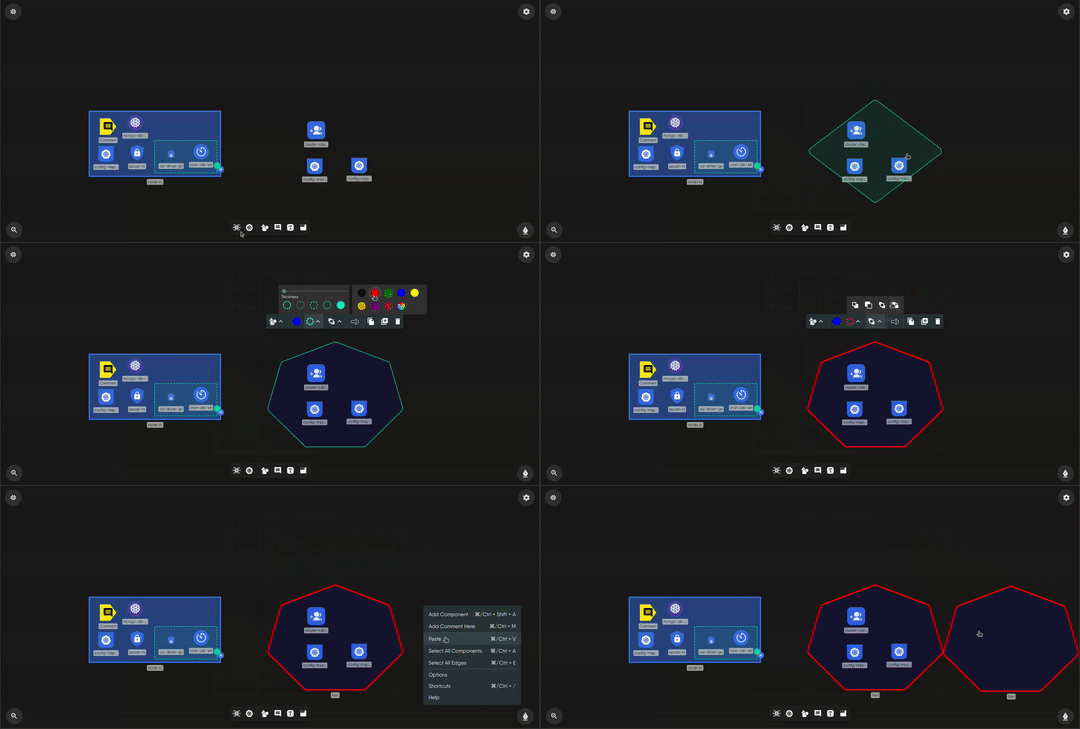
Shapes within the canvas offer flexibility. Select any shape to access a tooltip with options to resize, reshape, and change colors. This allows for precise adjustments similar to popular design software.
Text Annotation Customization 🔗

Text annotations come with various options. Customize fonts, sizes, alignments, and styles easily. Text boxes resize for seamless integration with the canvas.
Interactive Tooltip Interface 🔗

The tooltip is your gateway to customization. It’s simple and intuitive, offering a range of editing options upon selection. It’s designed for easy navigation, mirroring popular design software.
Advanced Customization Features 🔗
Manage layers, group elements, for better organization. These advanced tools ensure collaborative work while preserving design integrity.
Customizing Line Styles 🔗
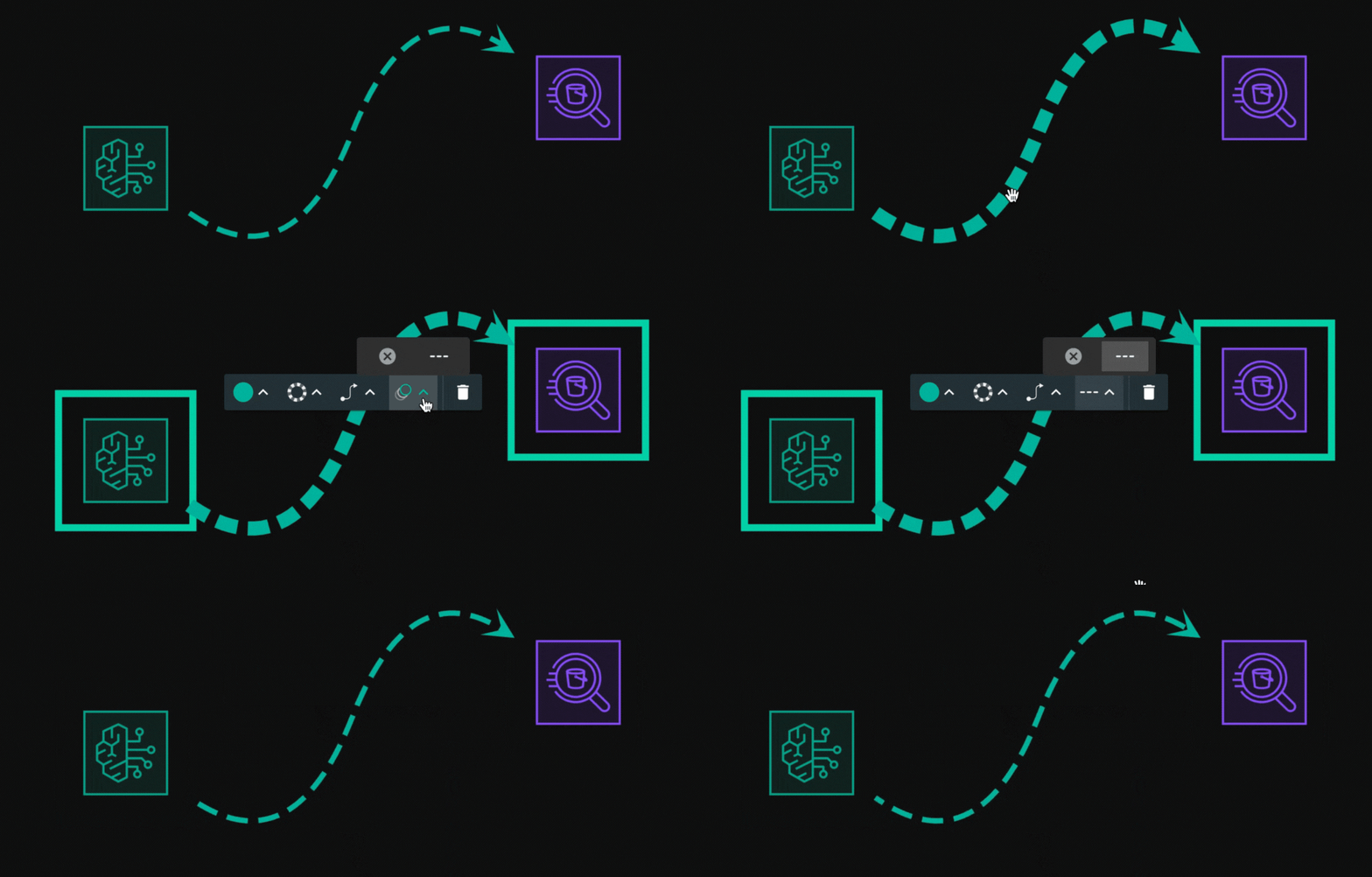
You have the flexibility to customize lines to fit your design needs and architectural specifications. Lines can represent various relationships, such as data flow, dependencies, or communication between components. By adjusting line properties like curve style, arrow style, and line type (e.g., solid or dashed), you can visually convey different meanings, making your design easier for others to interpret. Use the design tooltip to adjust these visual elements and create clear, meaningful connections between components in your architecture.

Adding Line Animations 🔗
Take your designs a step further by adding animations to the lines, like the marching ants effect, to emphasize flow or movement between components. This feature improves visual clarity by highlighting the direction and movement of processes or data throughout your system, making interactions more intuitive. Adding this animation is simple, just click on the line and use the design tooltip.
Consistent Functionality 🔗
The customization tools apply uniformly to all annotation types. Changes made within the tooltip reflect instantly on the canvas, facilitating real-time collaboration.
Benefits 🔗
Enhanced Communication
- Facilitates clearer communication by allowing visual annotations on specific design components.
- Reduces ambiguity and ensures better understanding of design intentions.
Efficient Collaborative Workflows
- Real-time collaboration accelerates feedback loops, enhancing team productivity.
- Enables instant sharing of ideas and design iterations among team members.
Safe Environment for Creativity
- Offers a risk-free environment for drawing, experimenting, and ideation without impacting the actual infrastructure.
- Encourages creativity and exploration within the design canvas.
Use Cases 🔗
- Team Collaboration: Multiple users collaborating on infrastructure designs, adding annotations and insights simultaneously.
- Educational Context: Instructors and students using the tool for visualizing concepts or workflows in remote learning environments.
- Architecture and Healthcare Planning: Professionals in architecture or healthcare visualizing and annotating designs collaboratively.
Conclusion 🔗
The whiteboarding and freestyle drawing feature enriches Kanvas’s visual infrastructure designer tool by seamlessly integrating drawing capabilities without compromising the integrity of the underlying infrastructure. Its versatility in enabling real-time collaboration, preserving data integrity, and fostering a safe creative space positions it as a powerful asset for effective communication, efficient collaboration, and innovative ideation within diverse professional settings.
Related Reading
- Whiteboarding
- Working with Canvas Objects
- Reviewing Designs
- Sharing Designs
- Working with Tags
- Canvas Actions


Recent Discussions on Kanvas
- Jul 12 | Unleash Visual Power: Import Your Configs by zihan kuang
- Oct 14 | Explore Meshery's Published Relationship Design Examples by Awani Alero
- Oct 03 | Design Review RFC: Kanvas Empty State Enhancement by Lee Calcote
- Jul 19 | [For Discussion] Visual indication of semantically vs non-semantically meaningful Meshery components by Lee Calcote
- Jun 07 | What are the conditions for a "System is unhealthy" warning? by James
- May 30 | Looking for a meshmate to help with first PR by Faisal Imtiyaz123
- Feb 28 | For Discussion: Capturing potential, but unrealized Relationships in Design Snapshots by Lee Calcote
- Feb 12 | Hint on Scaling & Verifying Cronjob in Playground by Sandra Ashipala