# Saving Designs
> How Kanvas persists your work, what the save indicator is telling you, and how to save a copy.
While you are signed in, Kanvas saves for you. There is no save button you must remember to press before closing the tab: every change you make to a design - adding a component, moving it, editing its configuration, drawing a relationship, renaming the design - is persisted to your account as you make it.
That leaves two things worth knowing: how to tell whether a change has actually landed, and how to deliberately create a second, separate copy.
## The save indicator
The indicator beside the design name reports the state of the design against your account.
| Indicator | Meaning |
| --- | --- |
| Cloud with a tick, plus a brief "Saved" | Every change is persisted. Hovering shows how long ago the last save completed. |
| Circling arrows, plus "Saving..." | A change is in flight. |
| Struck-through cloud, plus "Unable to save. Retrying..." | A save failed. Kanvas retries on its own; the message clears once one succeeds. |
If the indicator sits on "Unable to save" for more than a moment, stop making changes until it clears - your recent edits exist only in the browser until a save succeeds. The usual causes are a lost connection to Layer5 Cloud or an expired session.
Clicking the indicator forces a save immediately rather than waiting for the next automatic one.
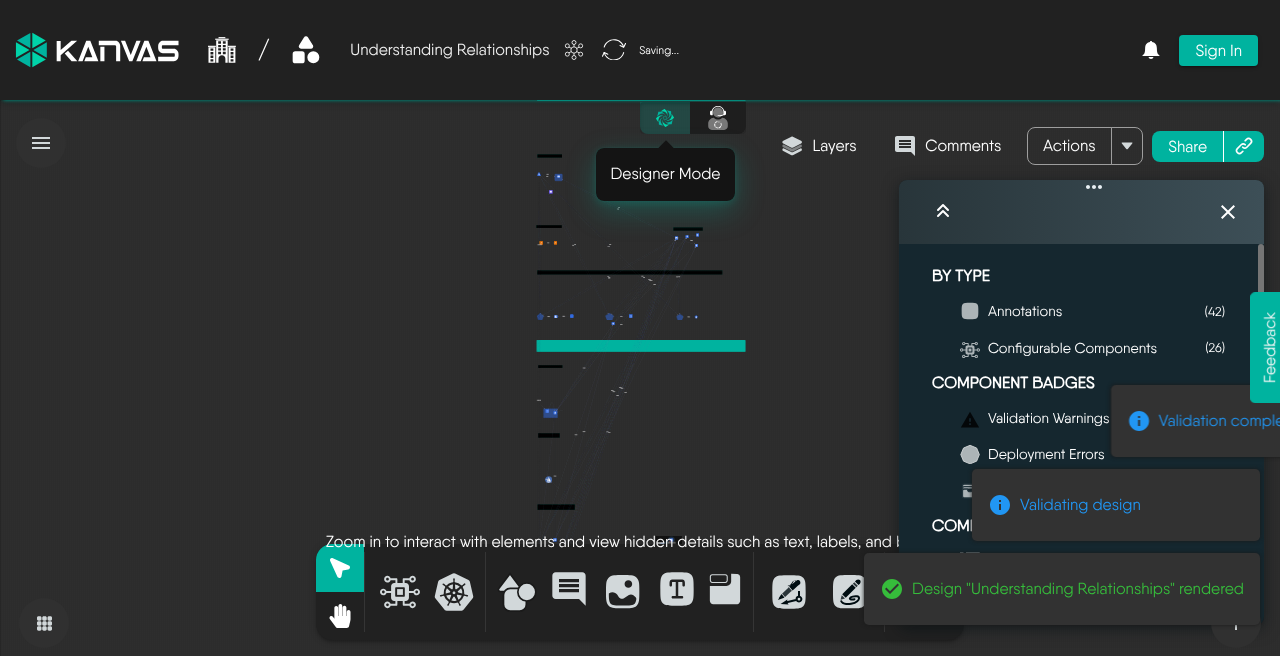
Anonymous capture (Sep 2026): the save indicator reads Saving… while the design syncs. Notification toasts from a recent Validate may also appear in this view.
## Save history
Hovering the save indicator on a saved design offers **View Save History**, which opens the design's version history. Because saving is continuous, history rather than manual save points is how you get back to an earlier state of a design.
## Save as
**Save as...** in the file menu creates a *new* design from what is currently on the canvas. You give the copy a name, Kanvas stores it as a separate design owned by you, and the canvas switches to that new design - so any further edits go to the copy, not to the original.
Use it to:
- take a private working copy of a design someone shared with you,
- branch a design before making a change you may not keep,
- turn a design opened from the catalog into one of your own.
**Save as...** is disabled while the canvas is empty.
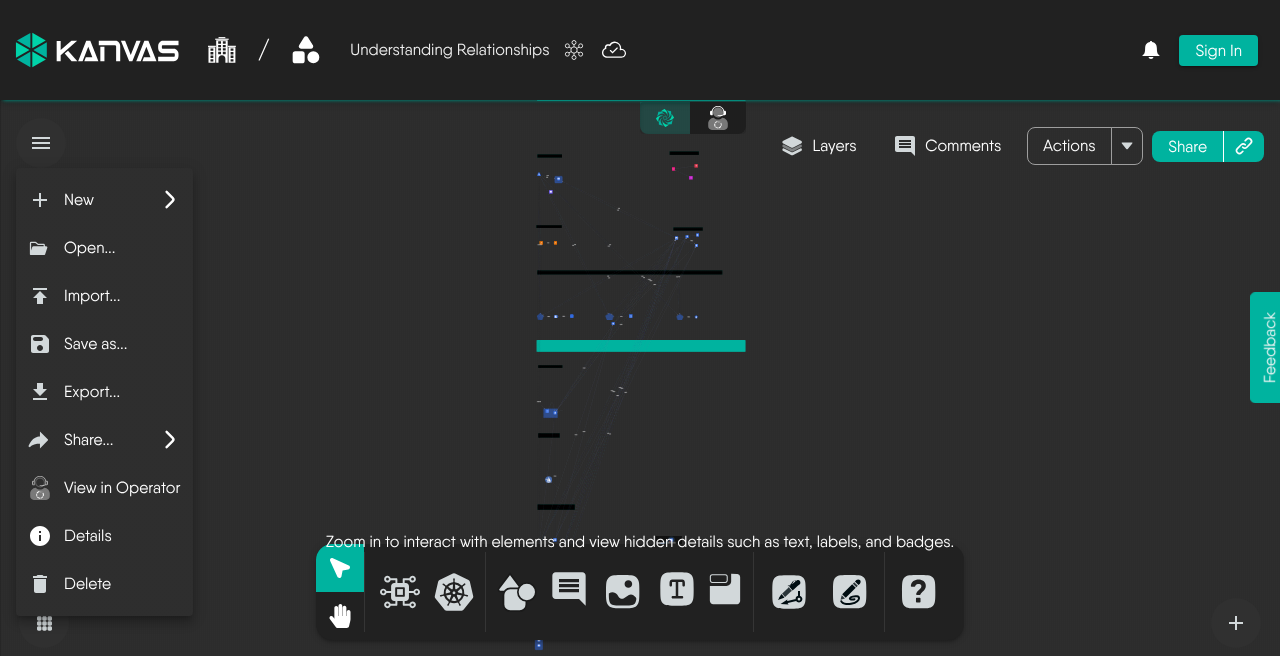
File menu (hamburger): New, Open, Import, Save as…, Export, Share, View in Operator, Details, and Delete.
## Signed out
Saving requires an account. If you are working in Kanvas without signing in - in the playground, for example - the design lives in your browser only. [Exporting the design](/kanvas/designer/export-designs/) is how you keep it.
***
### See Also
* **[Sharing Designs](/kanvas/designer/sharing/):** Give other people access to a saved design.
* **[Exporting Designs](/kanvas/designer/export-designs/):** Take a design out of Kanvas as a file.
* **[Publishing Designs](/kanvas/designer/publishing-designs/):** Offer a design to the catalog.