White-labeling (Rebranding)
Categories:
You can change the logo, color scheme, domain name, and other aspects of the user interface to match your own identity. Branding is set per organization. You do not need to self-host to white-label: a hosted organization can use the same theme, logos, links, domain, and mail settings. Self-hosting adds the provider-level defaults that every organization inherits.
Customizing Themes 🔗
The Layer5 Cloud dashboard can be customized with your own branding. An organization sets theme colors and four logos: desktop, mobile, dark desktop, and dark mobile. Theme colors accept only hexadecimal values. Each logo can be at most 500 KB. Layer5 Cloud rejects a color or an oversized logo with an error that names it. The signed-in product, and the sign-in, sign-up, and error pages on the organization’s own domain, use that theme.
This example includes a custom branding with colors and full-sized logo.

This example includes a custom branding with colors and logo mark.

This example includes a custom branding with colors and full-sized logo.

This example includes a custom branding with colors and full-sized logo.

Enable White Labeling: Organization Preferences 🔗
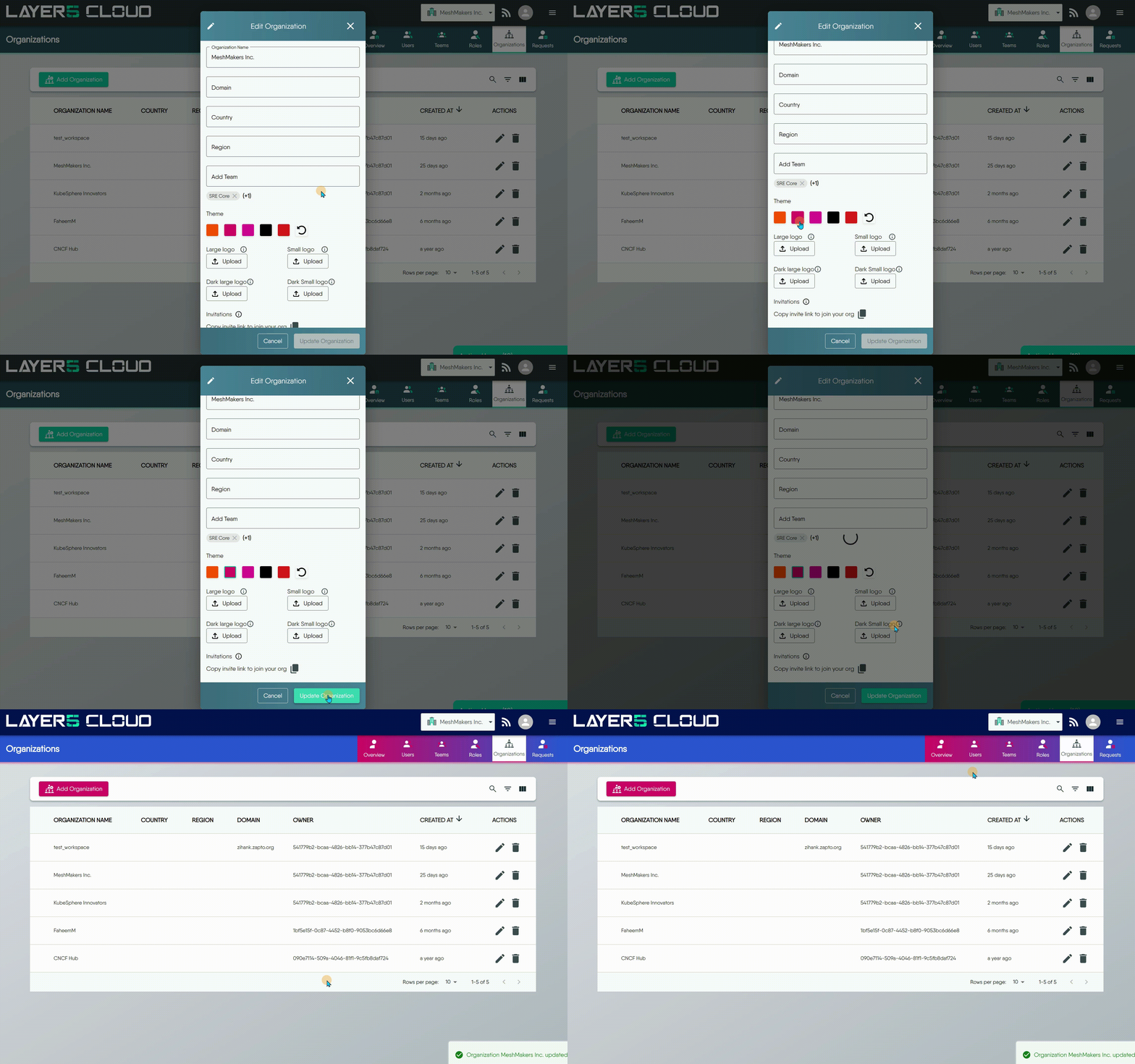
Layer5 Cloud supports customizing themes on a per organization basis. This includes the ability to upload your own logo and define your own color scheme. Your logo will be displayed in the top left corner of the dashboard. Both a full-sized logo and a logo mark are supported.
As an Organization Administrator, you can add your organization’s logo to the global navigation bar, which supports a large, horizontal logo for desktop users and a small, square logo for mobile users. The logo appears at the top of each user’s window for all Layer5 Cloud pages within your organization.
This example shows how to customize through different themes
Custom Logos 🔗
You can upload your own logo for your organization. Logo appears in upper left corner of all Layer5 Cloud pages. All teams, workspaces, and users in your organization will use these custom logos.
Your custom logos will optionally be visible to external users if you choose to customize your login screen. Otherwise, your custom logos will only be visible to users within your organization.
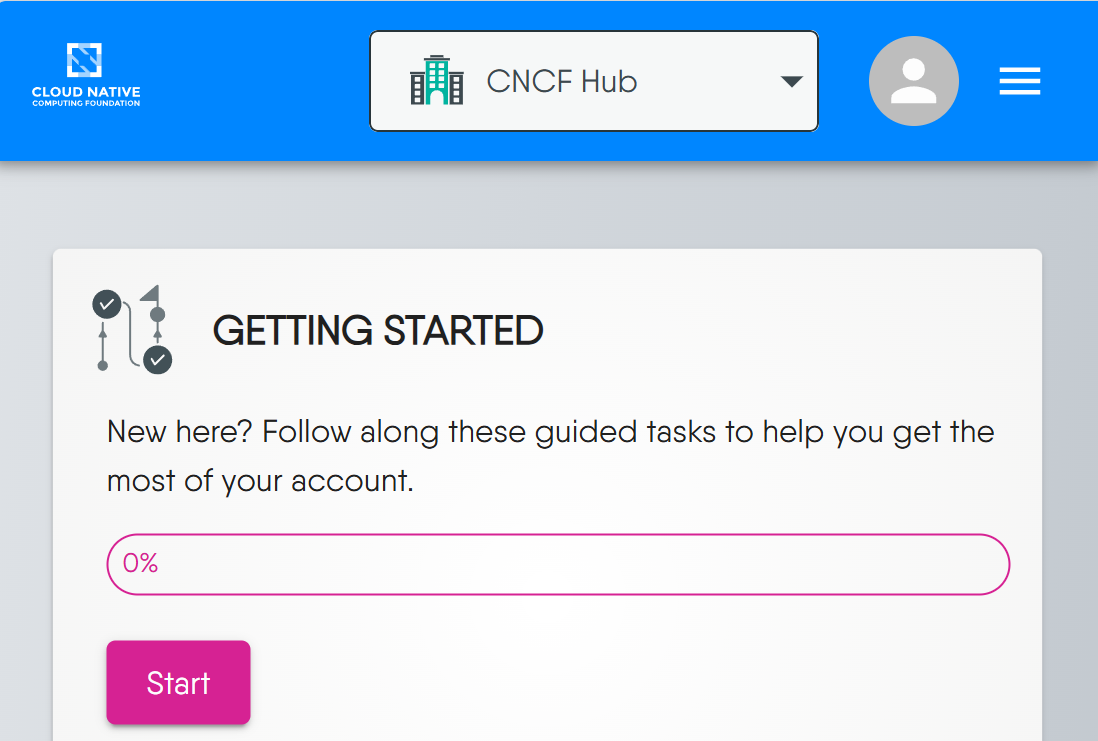
If you use a mobile device, the logo mark will be visible.
Logo Image Requirements 🔗
Logo images must be either in SVG, PNG or GIF format. GIF images can be animated, but are not recommended given their distraction to users. The maximum file size for each image is 500 KB.
Horizontal logo: 389 width x 32 height pixels
If you upload a smaller or larger image, the image is resized to exactly 389 x 32 pixels. If the aspect ratio does not match, then the image will be distorted. For example, a 132 x 132 pixel image expands to 389 x 32 pixels, causing distortion.
Square logo (mark): 32 width x 32 height pixels
When users register through the Open Organization Invitation Link, they will see the full-sized logo.
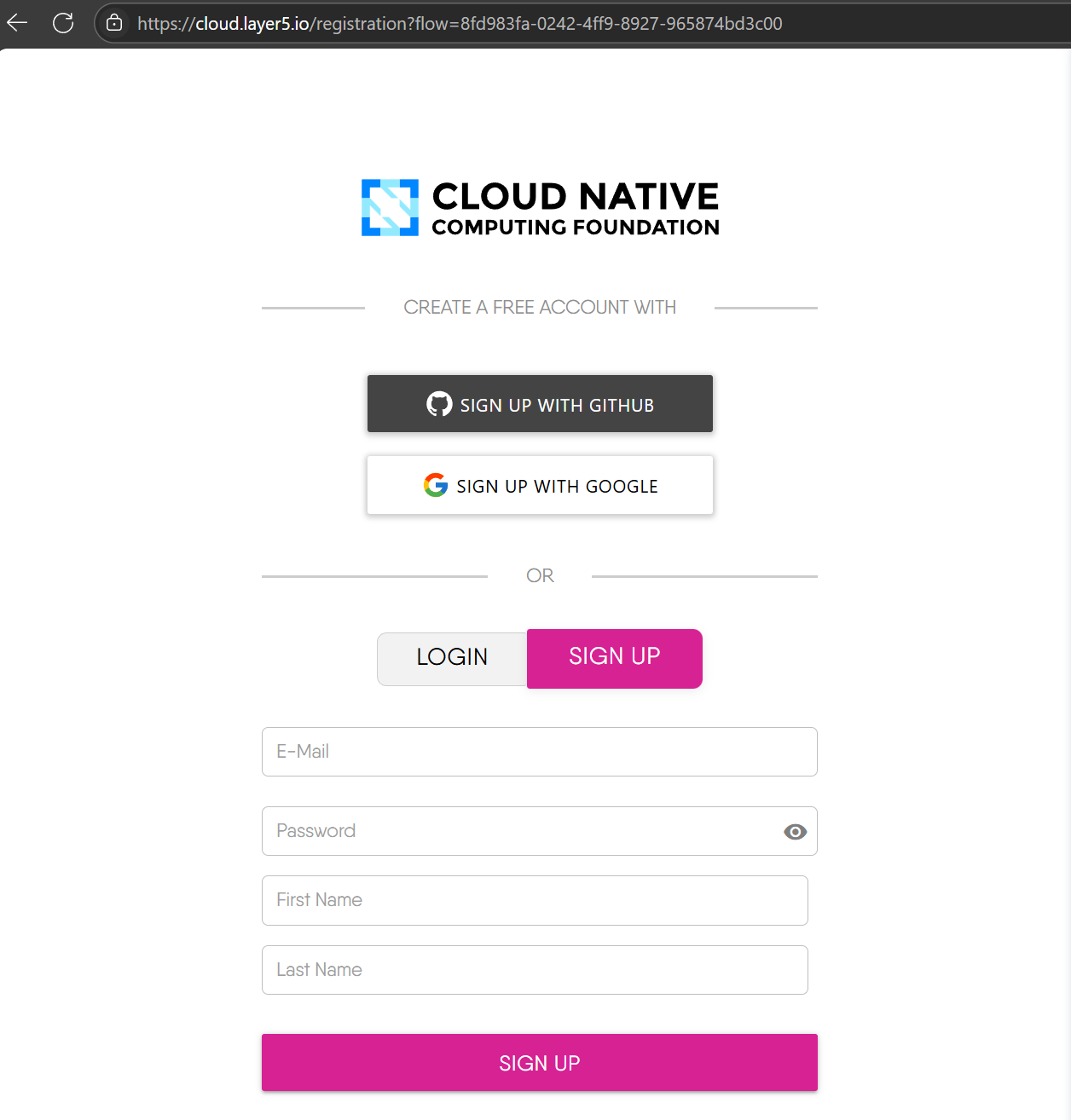
When logging into Layer5 Cloud on mobile devices, the small logo mark will be displayed.
Uploading Your Logo 🔗
On the Organizations page, you can upload your custom logo for your organization.
- Go to Menu and then [Identity > Organization].
- To open the Edit window, click the pencil icon next to the organization name.
- Click Select file to upload and select the logo image on your computer. You’ll see a preview of your logo.
- Click Save, if satisfied. You may change your custom logo images at any time.
Contact Information in Email Notifications 🔗
White-labeling extends past the browser: the footer shared by every transactional email Layer5 Cloud sends - invitations, welcome mail, role changes, catalog publish decisions, design comment mentions, email verification and password recovery codes - is built from your organization’s own contact information rather than Layer5’s.
That covers what the message says. The address it arrives from is a separate setting: by default every message leaves through Layer5’s shared mail server, so a fully branded email still arrives from a Layer5 address. An organization can instead register its own mail server on the Email tab of Edit Organization. Once the sending domain is verified, a connection test has passed and the server is turned on, application mail such as invitations and notifications leaves through that server from the organization’s own domain, subject to its fallback setting. See Bring Your Own Mail Server.
The same five link fields drive both your sign-in pages and your email footers. Set them as an Organization Administrator on the Organizations page: click the pencil icon next to your organization name, then fill in the fields under Login page links.
| Field | Where it appears in email |
|---|---|
| Support Email | The “email” contact link in the footer |
| Discussion Forum URL | The “forum” contact link and the forum icon |
| Slack URL | The “slack” contact link and the Slack icon |
| Privacy Policy URL | The “privacy policy” link in the footer’s legal line |
| Terms of Service URL | The “terms of service” link in the footer’s legal line |
How each field is resolved 🔗
Resolution is per field, not all-or-nothing. Each of the five fields is resolved independently, in this order:
- Your organization’s value, when you have set that field.
- Otherwise, the Provider Organization’s value for that field - the contact details configured on the provider organization that owns the deployment.
- Otherwise, the Layer5 default baked into the email template (
[email protected],discuss.meshery.io,slack.layer5.io, and the Layer5 Cloud legal pages).
Because the fallback is per field, filling in one field never blanks the others. An organization that publishes only its own support inbox keeps the Provider Organization’s forum, Slack, privacy policy, and terms of service alongside that inbox. A field left blank - or containing only whitespace - counts as unset and does not shadow the value it would otherwise fall back to.
Self-hosted deployments: configure the Provider Organization
On a self-hosted deployment, the second tier of this fallback is your Provider Organization, not Layer5. Setting the five link fields on your Provider Organization gives every organization in your deployment a sensible branded default, so a member organization that has not filled in its own contact details still never surfaces Layer5’s support channels to your users. See Configuring a subdomain for how to reach your Provider Organization.Value formats 🔗
Values are normalized before they are rendered into an email, so the link is always followable from a mail client:
- A root-relative value such as
/legal/privacy-policy.htmlis resolved against your organization’s own host - your custom domain when you have configured one, and the deployment’s base URL otherwise. Recipients therefore stay on your domain rather than being sent to the canonical Layer5 Cloud host. - A bare email address such as
[email protected]is turned into amailto:link. - Absolute
http://,https://,mailto:, andtel:values are used as given.
As on the sign-in pages, values are sanitized server-side. javascript:, data:, and protocol-relative (//host) values are dropped, and the field then falls back as though it were unset.
Organization Dashboard Customization 🔗
Layer5 Cloud supports customizing dashboard layouts on a per organization basis. As an administrator of your organization, you can customize the dashboard experience for all members of your organization. To customize your organization’s dashboard, select from a collection of widgets to include or exclude.
To customize your organization’s dashboard, follow the steps in this video or the steps outlined in the screenshots below.


Widget Limitations
Each of the prebuilt widgets can be added to a dashboard only once. If you find that a particular widget that you would like to have is not available, please let us know.Custom Domain Name and Login Screen 🔗
Info
Not sure whether you want a subdomain of the platform or your own separate custom domain - and whether you’ll need your own identity provider? The Organization Configuration Scenarios guide names each combination (Hosted, Branded, White-Label) and explains when to choose one over the next.Layer5 Cloud supports customizing the login screen based on custom domain name. Redirect your users to your own domain name. For example, if your domain name is mycompany.com, you can redirect users to meshery.mycompany.com.
Example: Layer5 Cloud custom branding on login screen with CNCF branding. Live example: https://cloud.layer5.io/signup?program=cncf
A subdomain is the part of a URL before the root domain. You can configure your subdomain as www or as a distinct section of your site, like hub.cncf.io.
Subdomains are configured with a CNAME record through your DNS provider.
Changing Custom Domain May Break Academy Integration
Changing your custom domain name after configuring an external Academy can break the content integration. If you change your domain, you must also update the organizational folder name (/content/learning-paths/<your-org-name>) in your Academy content repository to match.Configuring a subdomain 🔗
To set up a hostname such as hub.example.org:
- A Provider Admin enters the domain in the organization’s settings. Only a Provider Admin can set a new domain. An organization administrator can only clear one. Layer5 Cloud checks the format and uniqueness when you save, and does not look the name up in DNS. Saving does not reboot the server.
- Create a
CNAMErecord that points the custom hostname at your deployment’s hostname. Use an internationalized name in its Punycode form. - Add the custom hostname to
ingress.hostswith the same paths as your main host, and add it toingress.tlswith a certificate that covers it. The chart routes only the hosts you list. - Set
env.prototohttps. The server builds redirects to the custom domain from that value.
If you cannot edit the organization, verify that you are a Provider Administrator.
Internationalized Domain Names
If your custom domain is an internationalized domain name, you must enter the Punycode encoded version.Create one CNAME per hostname. Point it at your deployment’s hostname. On the hosted service that hostname is cloud.layer5.io. Do not rely on a wildcard record.
Risks of Using Wildcard DNS Records
Warning: We strongly recommend that you do not use wildcard DNS records, such as*.example.com. These records put you at an immediate risk of domain takeovers, even if you verify the domain. For example, if you verify example.com this prevents someone from using a.example.com, but they could still take over b.a.example.com (which is covered by the wildcard DNS record).Domain Format Requirements 🔗
Uniqueness: The domain must be unique across organizations, including deleted ones.
Format: 3 to 253 characters. Dot-separated labels of 1 to 63 ASCII letters, digits, or hyphens. A label cannot start or end with a hyphen. Do not include a protocol or a
www.prefix. Enter the hostname, for examplemeshery.mycompany.com. Internationalized names are written in Punycode (xn--).Who can set it: Only a Provider Admin can set a new domain. An organization administrator can clear one. Clearing the field removes the assignment.
DNS: Layer5 Cloud does not look the name up when you save. Lookups are cached for five minutes, and an organization change clears the affected entry.
Verifying your custom domain 🔗
Open Terminal.
To confirm that your DNS record is configured correctly, use the dig command, replacing hub.cncf.io with your subdomain.
$ dig WWW.EXAMPLE.COM +nostats +nocomments +nocmd
> ;hub.cncf.io.                    IN      A
> hub.cncf.io.             3592    IN      CNAME   .
> meshery.layer5.io.      43192    IN      CNAME   meshery.layer5.io .
> meshery.layer5.io .        22    IN      A       192.0.2.1
Social sign-in on a custom domain 🔗
Social sign-in (Google and GitHub) works on any custom domain - whether it is a subdomain of your deployment’s base domain (its registrable domain, technically the eTLD+1, for example layer5.io or example.com) or a fully-custom domain on a different base domain. In every case, the Google and GitHub buttons appear and complete sign-in using the deployment’s default identity providers. No per-organization setup is required, and bringing your own identity provider is not a prerequisite for social sign-in.
Same base domain. If the custom domain is a subdomain of your deployment’s base domain - for example a deployment at
cloud.example.comwith ameshery.example.comcustom domain (or, on the hosted service, a Layer5-provisioned partner subdomain such aspartner.layer5.io) - Google and GitHub sign-in work out of the box with the deployment’s default identity providers.Different base domain (fully-custom). If the custom domain sits on a different base domain - for example you CNAME
meshery.yourcompany.comto the hostedcloud.layer5.io, whereyourcompany.comandlayer5.ioare different base domains - Google and GitHub sign-in still work out of the box, again using the deployment’s default identity providers. You only need to bring your own identity provider credentials (BYOC) if you want your own brand on the consent screen, your own OAuth rate limits and audit trail, corporate single sign-on, or a distinct authentication boundary - never merely to enable social sign-in.
Social sign-in works without bringing your own identity providers
On any custom domain, the Google and GitHub buttons are shown and fully functional alongside email-and-password sign-in, using the deployment’s default identity providers - no per-organization configuration is required. Bringing your own identity providers (BYOC) remains optional and changes whose OAuth apps and consent screen are used, not whether social sign-in is available. See Identity Services for what BYOC is and when you might want it.The same base domain / different base domain split above still marks an authentication boundary. Organizations that share an identity provider (the canonical host and custom domains that use the shared, central provider) sit within the same authentication boundary, while an organization that brings its own (BYOC) provider is a distinct authentication boundary: same identity provider source means the same security boundary, regardless of how the host is named. See Identity Services → The identity provider is the security boundary and Identity and Security → Security Boundaries.
Frequently asked questions about white labeling 🔗
Do I need to self-host Layer5 Cloud in order to white-label it?
No, you can access and use all the same custom theming, custom dashboards, and organization preferences from the hosted version of Layer5 Cloud as well.
Do users have to use my custom URL to access the Organization?
No. Users can always sign in through the deployment’s own address and reach the organization. On the hosted service that address is https://cloud.layer5.io. On a self-hosted deployment it is the hostname you configured.
When I send someone a link that includes my custom URL, do they need to be logged in?
Yes. Users will need to be signed in through your custom URL (not through cloud.layer5.io) in order to open links that include your custom URL. Users who are not logged in can quickly do so, and subsequently, be redirected to the link you have shared.
Why does the custom domain work for my colleagues but not for me?
This issue could potentially be related to your local network environment. It’s possible that a local proxy client, VPN, or network accelerator on your computer might be intercepting the network request before it can reach the public internet.