Navigating Organizations
Learn how to navigate between different organizations in Layer5 Cloud and understand the order of precedence for organization settings.
This guide covers creating new organizations, editing their details, inviting members, and deleting organizations when necessary.

An Organization provides a way to structure your teams, users, and resource access for different projects or initiatives.
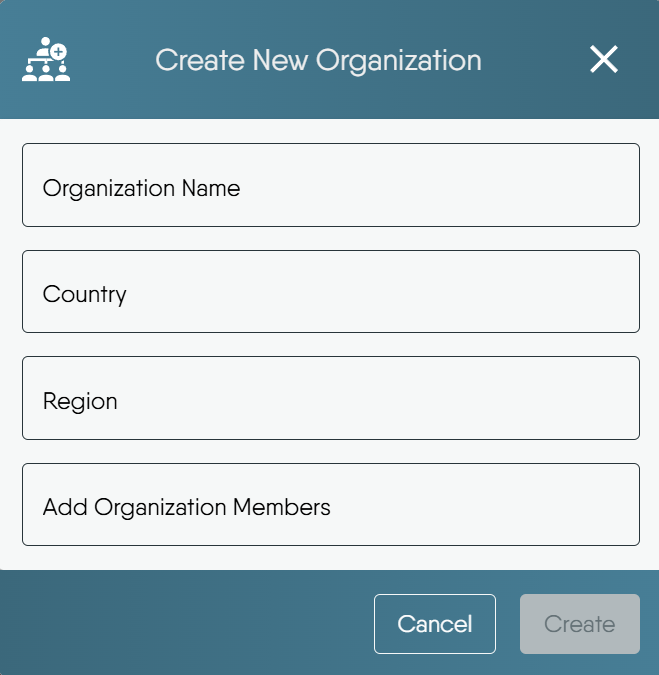
What creation does: you become the owner, you and any users you picked are added as members, and Layer5 Cloud creates a default workspace named My Workspace, owned by you. Ownership cannot be transferred. A new organization does not carry a domain. A Provider Admin assigns one afterward. Creating a child inside a parent also makes the creator a member and an Organization Admin of the child.
An Organization can have child Organizations of its own, to any depth. A child is created from the Child organizations section of the Organizations page, and an Organization Administrator or Owner of the parent can edit the child’s settings and membership, or delete it, without joining the child. Anything inside the child still requires membership in the child. Deleting an Organization that still has children is refused until the children are deleted. See Child Organizations for details.
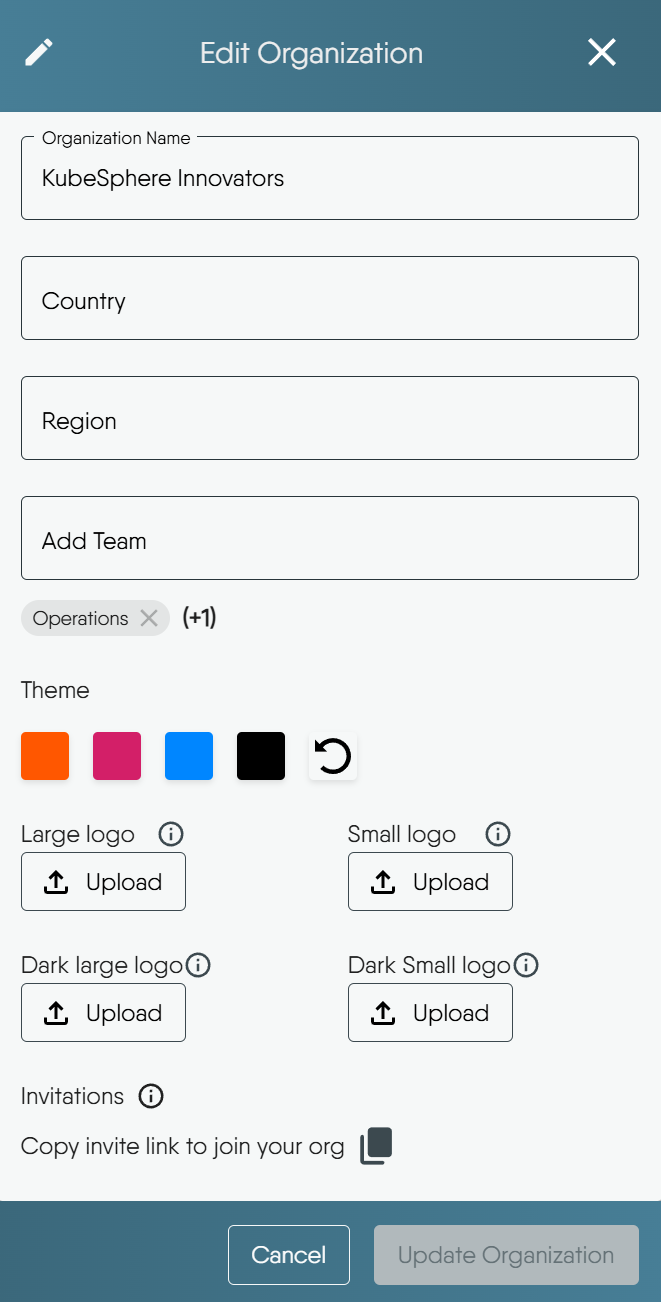
You can update your Organization’s name, location, associated teams, branding, and identity providers, as well as access its invitation link, by editing its details.
The Identity Providers tab controls which OAuth applications power sign-in for your Organization. This is most useful when your Organization uses a custom domain and you want your own brand, not Layer5’s, shown on the Google, GitHub, or OIDC consent screen.
By default, your Organization uses Layer5’s shared OAuth applications. To override them, add your own provider. There is no separate “enable” step:
Every removal asks you to confirm and explains the consequences before it proceeds.
Switching identity providers does not affect existing user accounts or login history. Users who signed in through a provider you later remove may need to re-authenticate.
The Email tab lets your Organization send application mail such as invitations and notifications through its own SMTP server, from its own domain, instead of through Layer5’s shared mail server. Nothing about the message then points to a shared provider.
Setting it up has three steps: register the server and its credentials, prove control of the sending domain by publishing a DNS TXT record, and pass a connection test. Completing them changes nothing on its own - mail keeps leaving through Layer5’s shared server until an administrator clicks Turn on, which is what switches routing over. The tab reports delivery health afterwards, and a fallback setting decides what happens to a message your server does not accept.
The full walkthrough, including a worked example for Google Workspace, Microsoft 365, Amazon SES, SendGrid and Postmark, and a troubleshooting table for every failure the tab reports, is in Bring Your Own Mail Server.
To invite multiple users to your organization at once, or to allow open sign-ups (for example, for a public community), you can use the “Open Organization Invitation Link.” This is a shareable link that lets users join directly.
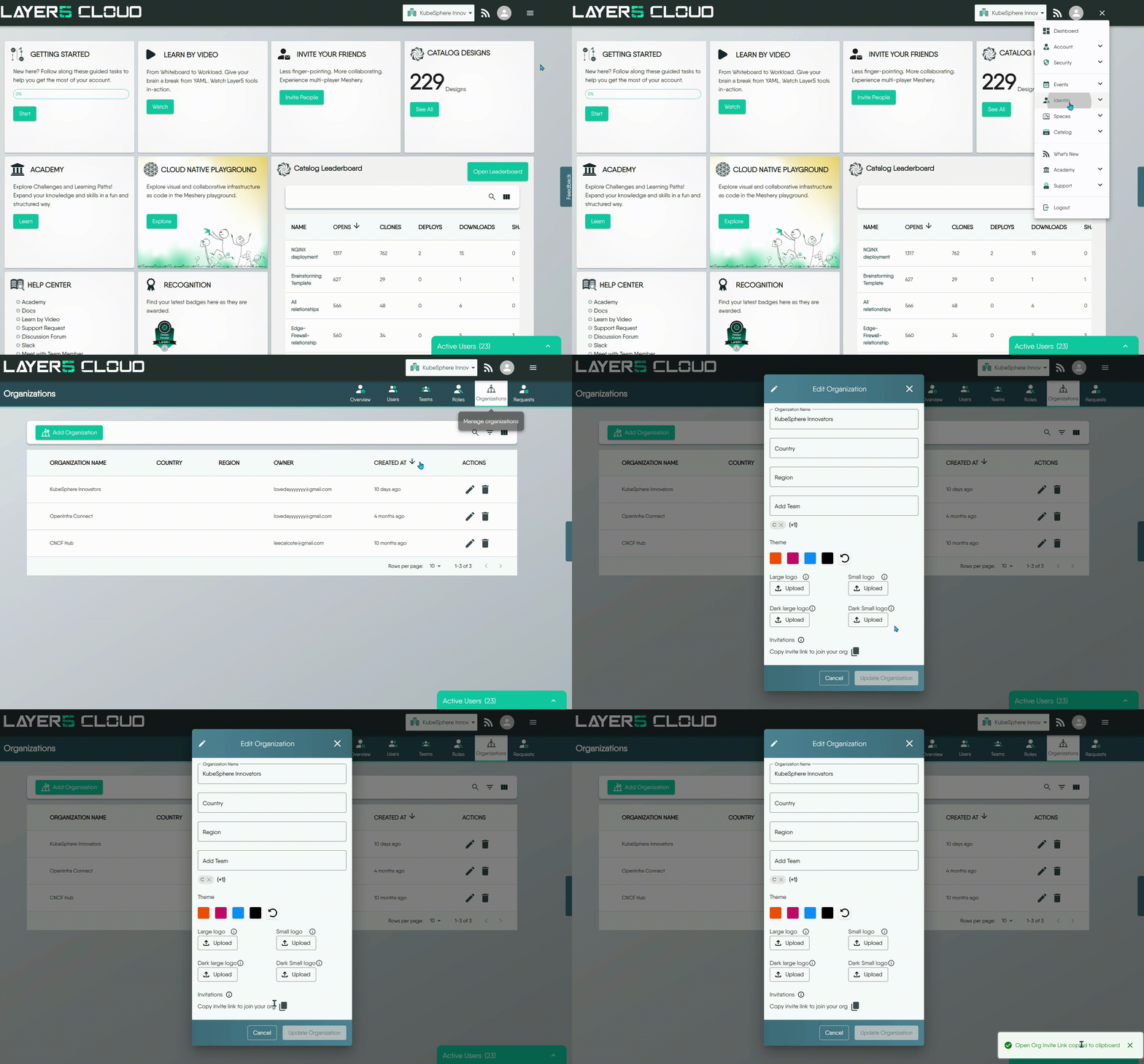
For New Users (without an existing Layer5 Cloud account):
For Existing Users (with a Layer5 Cloud account):
The organization record publishes the open invitation’s id, and the id is also its invitation code. Treat an open invitation as a shareable link, not a secret. You designate it in either of two places: the Open Org Invitation setting of the organization, or the open-signup option on the invitation itself. When both are set, the organization’s setting wins as long as it names a live invitation of that organization. Writing the organization setting needs Organization Admin in the organization or in its parent. Setting isDefault on the invitation needs Manage Invitations.
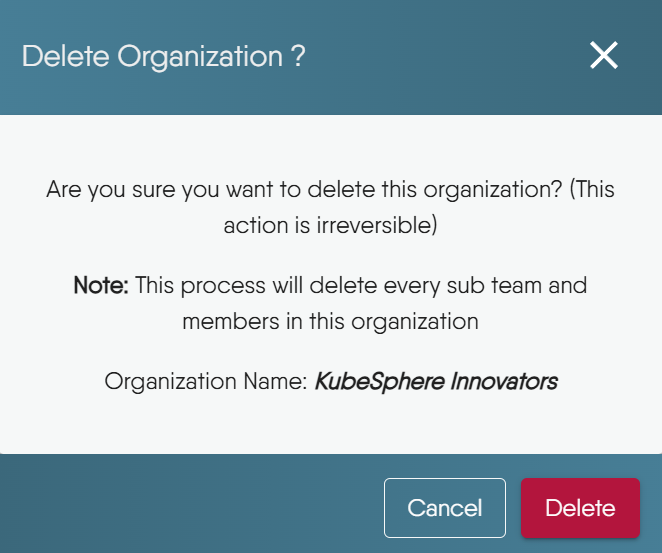
Deleting an organization retires it and every membership in it. The operation has no undo. The organization’s owner, a Provider Admin, or an Organization Admin or owner of the live parent can delete it. An Organization Admin who is not the owner cannot.
Deleting is a soft delete. It does the following:
The request does not delete the organization’s workspaces, environments, or designs. Nothing reaches them through the organization afterwards.
Layer5 Cloud refuses the deletion when the organization still has child organizations (HTTP 409, nothing is changed) or when it is the last live organization the caller owns (HTTP 403, you can't delete your last organization). The last-organization check does not apply when a parent’s administrator deletes a child.
Avoid deleting an Organization if:
Branding applies to the signed-in experience and, on an organization with its own domain, to the sign-in, sign-up, and error pages.
#rgb, #rgba, #rrggbb, or #rrggbbaa). Layer5 Cloud rejects any other value with a 400 error that names the color. Resetting the theme also clears the logos.image size exceeds the maximum limit.http or https URL, a mailto: or tel: link, or a root-relative path. Support entries accept the same forms plus plain text without a colon. LinkedIn, X, and YouTube accept an absolute http or https URL. Layer5 Cloud silently drops a value it considers unsafe, including javascript: and data: links, instead of rejecting the update. Clearing every link restores the defaults.Only a Provider Admin can set a domain to a new value. Any other caller receives a 403 error that says a domain requires a Provider Admin. Clearing the field removes the assignment and is open to the organization’s administrators. Keeping the stored value is also open to those administrators.
Layer5 Cloud checks a changed domain when you save: 3 to 253 characters, dot-separated labels of 1 to 63 ASCII letters, digits, or hyphens, a label not starting or ending with a hyphen, a hostname rather than an email address, not starting with http, https, or www, not one of the provider’s reserved hosts, and unique across organizations including deleted ones. Internationalized names are written in Punycode (xn--). The check is syntactic. Layer5 Cloud does not look the name up in DNS. Lookups are cached for five minutes, and every organization create, update, and delete clears the affected entry on the server that handled the change.
Adding a team maps the team into the organization. Removing a team ends that mapping only. The team itself is not deleted. Adding a team requires an Organization Admin or owner of the organization, or a Provider Admin. Removing a team also admits someone who is both Team Admin and team owner of that team. Removing a team that does not belong to the organization returns a 404 error.
Adding a member attaches an existing Layer5 Cloud account. It does not create an account. Adding someone who is already a member changes nothing. The caller must be an Organization Admin or owner of the organization, a Provider Admin, or an Organization Admin or owner of its parent. Removal ends the person’s organization membership and their membership in every team of that organization. Their account stays. The owner cannot be removed (Organization owner cannot be removed). Removing someone with no membership returns no organization membership to remove. Repeating a removal is harmless. See User Management.
Assigning or removing an organization role requires an Organization Admin of that organization, a Provider Admin, or Assign User Roles in it. The target must be a member, except when a Provider Admin makes the change. A row the caller may not change is skipped and reported as unauthorized to assign org roles, and the rest of the request still applies. Only a Provider Admin can assign provider roles.
Your current organization decides which resources you see, where new resources land, and which permissions apply. The switcher lists only the organizations you are a member of. Members who hold View All Organizations, a Provider Admin by default, can also select All Organizations. If you need an organization you are not in, ask its administrator or use an invitation link. See Navigating Organizations for the same behavior in more detail.
Layer5 Cloud decides the organization for each request from these sources, first match wins:
X-Current-Orgid request header. API clients set it per request.Layer5 Cloud ignores a header, preference, or session value that names an organization you do not belong to, and runs the request with no organization scope. Holders of View All Organizations are exempt and can name any organization. There is no query-string source.
| Area | Behavior |
|---|---|
| Designs, workspaces, environments, connections | Only the selected organization’s resources appear. |
| New resources | Created in the selected organization. Resources do not follow you between organizations. |
| Roles and permissions | Scoped to the organization. Administrative rights in one organization grant nothing in another. |
| Team memberships | The memberships and permissions of the selected organization apply. |
These actions do not exist in Layer5 Cloud today:
Learn how to navigate between different organizations in Layer5 Cloud and understand the order of precedence for organization settings.
Send your Organization’s email through your own mail server, from your own domain, instead of through Layer5’s shared mail server.
Create organizations inside an organization, see who can view and administer them, and understand what a parent administrator can and cannot do in a child.