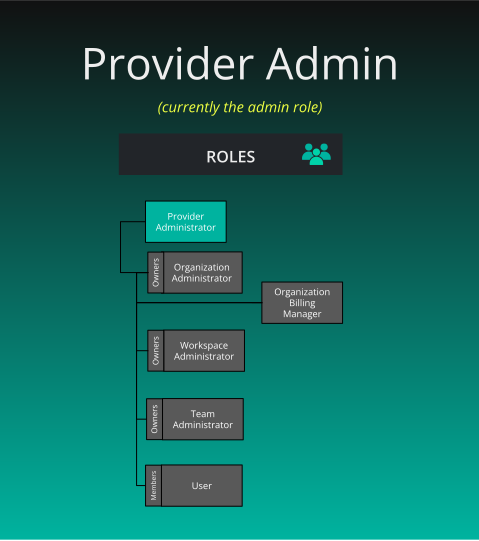
Default Organization Roles
Organization-scoped roles include Organization Administrator. There is no Organization Billing Manager role.
Roles map permissions to users. Roles contain any number of keychains, which contain any number of keys (permissions). Assign roles to users to grant permissions.
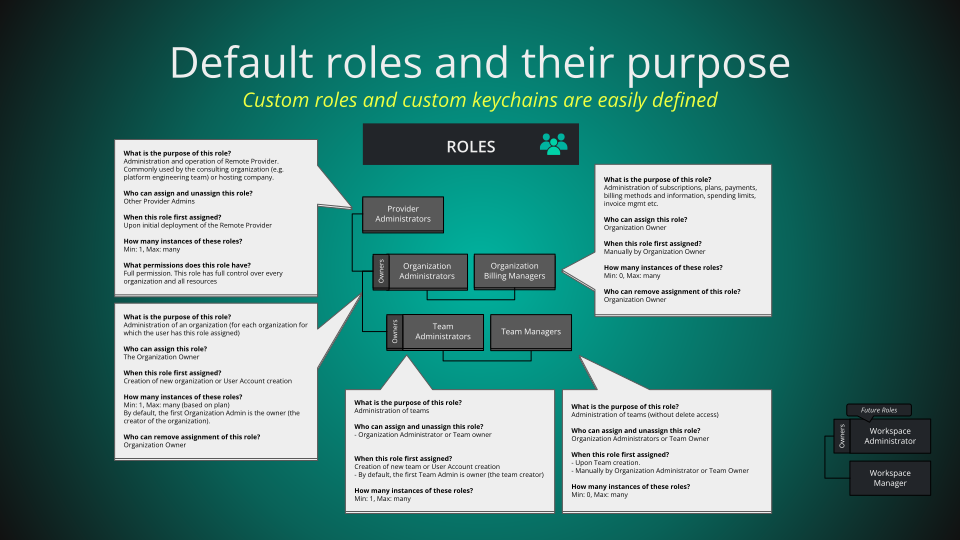
What is the purpose of this role?
Who can assign this role?
When this role is first assigned?
How many instances of these roles?
Who can remove assignment of this role?
What permissions does this role have?
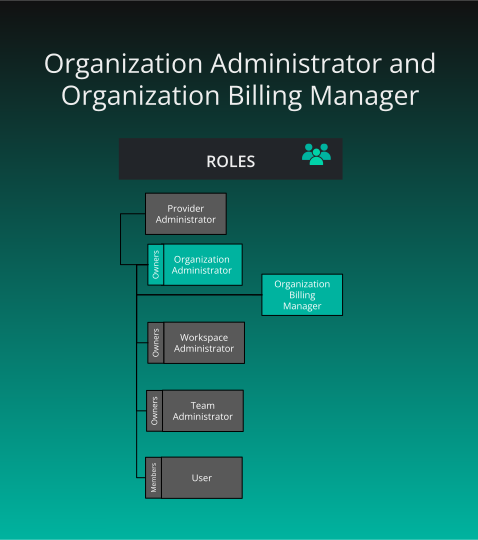
What is the purpose of this role?
Who can assign this role?
When this role is first assigned?
How many instances of these roles?
Who can remove assignment of this role?
Layer5 Cloud has no Organization Billing Manager role. Organization-scoped roles are Organization Admin, User, Workspace Admin, Workspace Manager, Academy Admin, and Academy Learner. See the pages for workspace roles, the user role, and academy roles.
Owners are not roles. They are a fixed attribute of the organization.
The creator of an organization is its owner. Ownership cannot be transferred, and the owner cannot be removed. The owner can delete the organization. An Organization Admin who is not the owner cannot. A Provider Admin, or an Organization Admin or owner of the live parent, can also delete it.
The owner keeps administrator access through ownership even if the Organization Admin role is removed from them. Other members do not.
For more information, see Organizations.
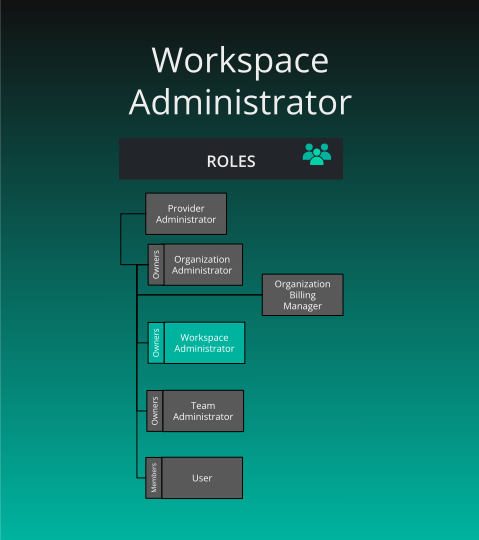
What is the purpose of this role?
Who can assign this role?
When this role is first assigned?
How many instances of these roles?
Who can remove assignment of this role?
Workspace Manager is a separate organization role. It covers workspace, environment, team, and lifecycle management, plus the designs, environments, and connections inside the workspaces where the user holds the role. It does not include catalog curation. Organization Admins assign it, the same way they assign Workspace Admin.
There is no Workspace Owner role, and creating a workspace does not grant a role that only the creator can hold. Delete Workspace is a permission key, not a privilege reserved to a workspace owner. See Roles and Permissions.
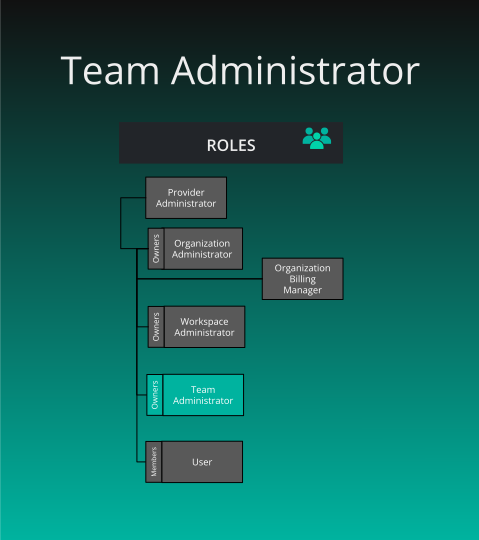
What is the purpose of this role?
Who can assign and unassign this role?
When is this role first assigned?
How many instances of these roles?
Any number, on every plan. Layer5 Cloud does not stop you removing the last Team Admin.
Layer5 Cloud has no Team Manager role. Team Admin is the only team-scoped role.
Team owner is not a role. The user who created the team is its owner. Ownership cannot be transferred, and the owner cannot leave the team.
Owner alone cannot delete the team, and Team Admin alone cannot delete it. Delete requires an Organization Admin or the organization owner, a Provider Admin, or the person who is both owner and Team Admin of the team.
Team Admin permissions apply across the organization the team is mapped into, not only inside the team.
For more information, see Teams.
The following illustrates how Provider Admin, Org Admin, and Team Admin roles stack in practice across the Orbital Labs ecosystem. See Meet Five and the Cast for the full narrative.

Organization: Constellation Cloud
Scope: All tenants (Orbital Labs, Stellar Dynamics, and others)
Dr. Aiko Sato holds the Provider Admin role at Constellation Cloud, the MSP that manages Orbital Labs as a tenant. Provider Admins can create, view, edit and delete every resource across all tenant organizations. Dr. Sato has seen every misconfigured RBAC policy known to humankind, which is why she documents each one.
Organization: Orbital Labs
Scope: Orbital Labs
Maya Chen holds the Org Admin role for Orbital Labs. She manages user accounts, workspace creation, and organization role assignments within Orbital Labs. She also holds Team Admin for the Development team. Organization Admin alone does not add or remove members of a team she does not own and does not administer.
Organization: Orbital Labs
Team: Infrastructure
Scope: The Team Admin keys apply across Orbital Labs, not only inside the Infrastructure team
Zara Osei holds the Team Admin role for Orbital Labs’ Infrastructure team. That role’s keys apply in the organization the team is mapped into. She does not assign provider roles, and she does not create user accounts.
| Role | What it is for | Assigned by |
|---|---|---|
| Kanvas | Makes the Kanvas extension available when a Meshery Server connects. It holds no keychains. | Provider Admin, automatically at sign-up. Anonymous accounts receive it alongside Anonymous User. |
| Curator | Managing catalog content. In a default install it holds no keychains. Catalog curation keys come through Organization Admin and Workspace Admin. | Provider Admin |
| User | Viewing and editing users, plus learning paths and challenges | Organization Admin |
| Workspace Manager | Workspace, environment, team, and lifecycle management, plus designs, environments, and connections in the workspaces where the user holds the role. No catalog curation. | Organization Admin |
| Academy Admin | Academy, team, and workspace management | Organization Admin |
| Academy Learner | Academy content access | Organization Admin |
| Anonymous User | Using Kanvas without signing in | Applied automatically. It cannot be assigned and never appears in a role list. |
Provider roles are Provider Admin, Kanvas, and Curator. The organization role list shows every role except those three, custom roles included. The team role list shows Team Admin. Viewing the list requires View All Roles, which User, Team Admin, Workspace Admin, Organization Admin, and Provider Admin hold by default.
Every assignment has a scope.
| Scope | Roles you can assign | Who assigns | The person must |
|---|---|---|---|
| Provider | Provider Admin, Kanvas, Curator | Provider Admin | Have an account |
| Organization | Every role except the provider roles and Anonymous User, custom roles included | Organization Admin of the organization, a holder of Assign User Roles, or Provider Admin | Be a live member, unless you are a Provider Admin |
| Team | Team Admin only | Team Admin of that team, Organization Admin or holder of Assign User Roles for a team mapped to the organization, or Provider Admin | Be a live member, unless you are a Provider Admin |
Open the member on the Users page and edit their roles. Confirm the organization in your session is the one you mean to change.
| Rule | Behavior |
|---|---|
| Replace, not append | The list you submit is the complete set for that scope. Roles you leave out are removed. An empty list removes every role in the scope and keeps the membership. |
| Membership required | The person must already be a member, unless you are a Provider Admin. An unauthorized or non-member row is skipped and reported, not applied. |
| Provider roles refused in org or team rows | A request that names Provider Admin, Kanvas, Curator, or Anonymous User in an organization or team row is refused with HTTP 403 for every caller, a Provider Admin included, and nothing in the request is applied. |
| Unknown role | A role name that does not exist is refused with HTTP 400 and nothing is applied. |
| All or nothing for refusals | One refused row stops the whole request before any write. If a write fails after screening, rows written earlier in the same request stay written. |
A role change can email the person only when you ask for it. A failed send is reported and does not undo the change. The welcome email option is honored only for Provider Admins.
Granting Team Admin to a person who is in the organization but not yet on the team also adds them to the team. Each team row writes only to its own team.
A request from anyone other than a Provider Admin that includes provider roles skips those rows and reports <email> unauthorized to assign provider roles. That message can also appear on an ordinary organization role change made by a non-Provider-Admin, because the provider portion is skipped. It does not mean the organization change failed.
To remove roles, assign the set the person should keep. Removing every role in a scope leaves the membership. To end access to an organization, remove the person from it. See User Management.
A role write answers with HTTP 200 and a JSON array of strings. An empty array means every row was applied. Each string is a row that was skipped or a step that failed, for example <email> unauthorized to assign org roles or role assigned:role change notification failed.
The Users page reports success whenever the answer is 200, so it does not display the strings. After a role change, check the member’s roles in the Users table. The audit trail records <actor> assigned roles: [<names>] to <person> or <actor> removed roles for <person>.
The Roles page offers creating a role (a name, a description, and a set of keychains), editing it, and deleting it. The interface gates each action on Create Custom Roles, Update Custom Roles, or Delete Custom Roles.
The server is stricter. It accepts a new role, or a change to an existing role, only from a Provider Admin and refuses everyone else with HTTP 403. Those keys belong to the Provider Management keychain, which only Provider Admin holds by default. Holding the matching key through another role is not enough.
A custom role is a name (at most 50 characters), a description, and a set of keychains. The server does not reject an empty name up front, and it accepts a duplicate name. It resolves a role by name when you assign it, so two roles with the same name make assignment ambiguous. A custom role is assigned at organization scope. Teams accept only Team Admin.
Creating a role is two steps: the role is saved, then each keychain is attached. Confirm the keychains afterward. The role appears in every organization on the deployment.
Roles and keychains are defined once for the whole deployment. Adding a keychain to a role, or removing one, changes that role for every user who holds it in every organization. This applies to built-in roles as well as custom ones.
Only a Provider Admin can include a keychain in a role or remove it. The Assign Keychains to Roles key belongs to the Provider Management keychain, and the server also confirms that the caller holds the Provider Admin role for the whole deployment. Organization Admins and Team Admins cannot attach or detach keychains, whatever keys their roles hold. To change what people in one organization can do, change which roles they hold in that organization.
The interface refuses to edit Provider Admin, Kanvas, and Curator. The server does not distinguish them from other roles, so do not rely on the interface when you automate. Renaming a role changes the name that assignment looks up. Existing holders keep the role.
Layer5 Cloud has no way to delete a role. The delete control on the Roles page is disabled. To retire a role, remove it from every member who holds it and stop assigning it.
Layer5 Cloud never asks whether the user has a particular role name. It asks whether the user holds the key the action requires, in the organization of the request. A custom role that holds the same keys as a built-in role passes the same checks.
A refused action returns HTTP 403 with a JSON body:
{
  "error": "You do not hold the permission this action requires in this organization",
  "code": "<error code>"
}
A 403 means the user is signed in but none of their roles in the organization in context holds the required key. See Roles and Permissions.
Organization-scoped roles include Organization Administrator. There is no Organization Billing Manager role.
Workspace Administrator and Workspace Manager are organization-scoped roles.
Team Admin is the only team-scoped role. There is no Team Manager role.
By default, members of an Organization are provided a User role.
By default, Academy has two roles available: Academy Administrator and Learner.