Organizations
Categories:
An organization is the tenant boundary in Layer5 Cloud. It decides whose resources a request can reach, whose billing it counts against, and which roles apply. The organization is the unit of multi-tenancy and the core security boundary. Teams and workspaces belong to one organization, and users hold roles in it. Roles, keychains, and keys are defined once for the whole provider, but resources, billing, and access control are isolated per organization, so a role held in one organization grants nothing in another.
The structure is flexible. An organization has any number of teams. A team has any number of users, and a user can belong to any number of teams. A user can belong to any number of organizations and holds an independent set of roles in each.
Teams group users inside an organization and control access to workspaces and to workspace resources such as environments and managed and unmanaged connections. See Teams and Workspaces.
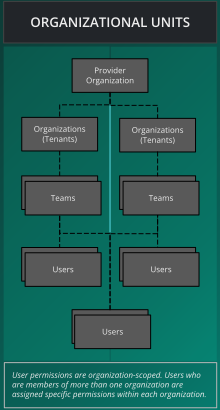
Every deployment has one provider organization and any number of tenant organizations. The provider organization operates the deployment and owns its default identity providers, which tenants use unless they bring their own. It is never a child, and it cannot hold child organizations. A tenant is every other organization. A tenant is configured as Hosted, Branded, or White-Label, depending on the domain it uses and the identity provider that authenticates its users. For how to choose, see Organization Configuration Scenarios.
Example: The Orbital Labs Ecosystem 🔗
The following organizations illustrate how multi-tenancy works across provider, startup, and enterprise tiers. Follow along in the rest of the docs using Five and the cast at Orbital Labs.
Type: Managed Service Provider
Plan: Enterprise
Provider Admin: Dr. Aiko Sato
Constellation Cloud manages multiple tenant organizations, including Orbital Labs and Stellar Dynamics. As the provider, it controls the top-level entitlement configuration for all tenants.
“We keep the lights on so you don’t have to.”
Type: Cloud-native startup
Plan: Team
Org Admin: Maya Chen
Orbital Labs is a tenant of Constellation Cloud. Users at Orbital Labs belong to one or more teams (Infrastructure, Development) and access workspaces within their organization.
“Moving fast and occasionally breaking staging.”
Type: Enterprise client
Plan: Enterprise
Org Admin: Marcus Webb
Stellar Dynamics is a separate tenant of Constellation Cloud and an enterprise client of Orbital Labs. Users at Stellar Dynamics can be granted access to specific Orbital Labs workspaces and designs via cross-org access controls.
“Fortune 500, cloud-native ambitions, legacy everything.”
Cross-Organization Access 🔗
Users of one organization may be granted access to resources (workspaces, designs) in another organization. Entitlements are org-scoped: the permissions a user has in Orbital Labs do not automatically apply in Stellar Dynamics, and vice versa.
Cross-organization access works through resource-access mappings, a grant attached to an individual resource (such as a single design) that names the user it is shared with. These mappings deliberately cross the organization boundary: a user does not need to be a member of an organization to open a resource that has been shared with them there. For example, when Maya at Orbital Labs shares the stellar-saas-platform design with Marcus at Stellar Dynamics, Marcus can open that one design even though he is not a member of Orbital Labs. This is the mechanism that makes collaboration between organizations possible, and it is distinct from organization membership and from the organization-scoped roles described below. Sharing a single resource grants access to that resource only. It does not make the recipient a member of the organization, give them a role there, or reach any of the organization’s other resources.
Info
Organization membership alone does not decide what a user can see and do. For how the connected identity provider, organization-scoped roles, and resource-access mappings fit together, and what counts as a security boundary, see Identity and Security: Security Boundaries.Info
See Meet Five and the Cast for the full narrative reference, including team structure and workspace inventory.Child organizations 🔗
A child organization is a tenant created inside another tenant, its parent. See Child Organizations.
- An organization can have any number of children, and children can have children of their own. There is no depth limit.
- A child has exactly one parent, fixed when the child is created. A child cannot be moved to a different parent.
- The Organization Admin or owner of a parent governs its direct children only: they can edit a child’s settings, add members to it, search its members, and delete it. Governing a grandchild belongs to the administrator of the intermediate organization.
- A parent administrator is not a member of the child. Workspaces, teams, connections, identity providers, and the mail server inside the child still require membership and a role in the child.
- An organization that still has live child organizations cannot be deleted. Delete the deepest children first.
- The provider organization cannot hold child organizations.
The owner 🔗
The user who creates an organization is its owner. Ownership is a fixed attribute of the organization, separate from the Organization Admin role.
- The owner cannot be removed from the organization. A removal request for the owner fails with “Organization owner cannot be removed”.
- Ownership cannot be transferred. Layer5 Cloud has no operation that reassigns the owner of an organization.
- No member can leave an organization on their own. Membership ends only when an authorized administrator removes the member.
- The owner can delete the organization. An Organization Admin who is not the owner cannot.
Plan who creates each organization accordingly. For a shared or long-lived organization, have it created by the account that should remain its owner.
How a request or sign-in finds its organization 🔗
Every guarded request runs in one organization. Layer5 Cloud resolves that organization from these sources, in this order, and the first source that applies wins:
- Domain. The request’s host matches an organization’s custom domain.
X-Current-Orgidheader. The organization an API client names.- Saved preference. The default organization stored in the user’s preferences.
- Browser session. The organization the browser session last selected.
The header, the saved preference, and the browser session must name an organization the user is a live member of. A value that names any other organization is ignored, and the request runs with no organization scope. Callers who hold View All Organizations (Provider Admin by default) are the exception: they can name any organization, or all to span every organization. Layer5 Cloud reads no organization from the query string.
Why the domain wins 🔗
A custom domain identifies the tenant before the user makes any choice. A sign-in page served on an organization’s domain shows that organization’s branding, authenticates through that organization’s identity provider, and applies its open invitation, so the request belongs to that organization regardless of the user’s saved preference. Resolving by domain does not check membership. Every guarded action still checks the permissions the user holds in that organization.
Domain matching follows these rules:
- The host is matched exactly against organization domains, with the protocol and port removed.
- The deployment’s own base host, IP addresses, and the provider’s reserved domains are never treated as custom domains.
- A domain belongs to at most one organization. A deleted organization keeps its domain, so clear the domain before deleting if the address must be reused.
- Domain-to-organization lookups are cached for five minutes. Creating, editing, or deleting an organization clears its entry on the server that handled the change, so other server instances can serve the previous mapping until their entry expires.
Assigning a new domain to an organization requires a Provider Admin. Organization administrators can keep the current domain or clear it. Layer5 Cloud validates the domain’s syntax when it is saved and does not perform a DNS lookup. See Organization Configuration Scenarios.
The organization switcher lists only the organizations the user is a member of. Holders of View All Organizations can also select All Organizations. See Navigating Organizations.
Lifecycle 🔗
Organization Management covers the procedures.
Create 🔗
An organization starts with a name (required), a country, and a region. Creating it does two things:
- The creator becomes the owner.
- Layer5 Cloud creates a default workspace named “My Workspace”, owned by the creator.
A domain is not set at creation. A Provider Admin assigns one afterward. Creating a child organization inside a parent requires Create Organization in the parent, and makes the creator a member and an Organization Admin of the child.
Edit 🔗
Administrators of the organization shape how it looks and how users join it:
| Setting | What it controls |
|---|---|
| Name, country, region | The organization’s identity in lists and the switcher. |
| Branding | Theme colors (hex values only) and four logos: desktop, mobile, dark desktop, and dark mobile, each up to 500 KB. Resetting the theme also clears the logos. |
| Links | Terms of service, privacy policy, support channels, and social links shown on the organization’s sign-in, sign-up, and error pages and in email footers. Unsafe values are dropped rather than rejected. |
| Sign-in carousel | Whether sign-in pages show the feature carousel. On by default. |
| Domain | The custom host that resolves to the organization. New values require a Provider Admin. |
| Open invitation | One invitation that admits any non-member who signs in through the organization’s host. The user gains the invitation’s organization, team, and role grants. The invitation’s ID is public and works as a shareable link. |
| Teams | Which teams belong to the organization. Removing a team ends the mapping. The team itself is not deleted. |
| Identity providers | The organization’s own sign-in providers, in place of the provider organization’s defaults. |
| Mail server | The organization’s own SMTP server for outgoing email. See Bring Your Own Mail Server. |
Delete 🔗
Deleting an organization is a soft delete:
- The organization, every membership in it, and every team-to-organization mapping end.
- Teams, workspaces, environments, and designs are not deleted by the request, but nothing reaches them through the organization afterward.
- No restore operation exists.
Layer5 Cloud refuses the deletion in two cases:
- The organization still has live child organizations (HTTP 409). Nothing is changed.
- The organization is the last live organization the caller owns (HTTP 403). This check does not apply when a parent administrator deletes a child.
The organization’s owner, a Provider Admin, or an Organization Admin or owner of the live parent can delete an organization.
Who can do what 🔗
Several organization actions check a role or ownership on the server rather than a single permission key:
- Delete the organization. Allowed for the organization’s owner, a Provider Admin, or an Organization Admin or owner of the live parent. An Organization Admin who is not the owner cannot delete.
- Assign a new domain. Allowed for Provider Admins only. Any other caller receives HTTP 403 when saving the change.
- Edit the organization and add members. Allowed for an Organization Admin or the owner of the organization, a Provider Admin, or an Organization Admin or owner of the live parent. Holding Edit Organization or Add User to Organization through another role is not enough. Adding a member adds an existing account. It does not create one.
- Assign organization roles. Allowed for an Organization Admin of the organization, a Provider Admin, or a holder of Assign User Roles there. The target must be a member. Role rows the caller cannot write are skipped and reported in the response. The rest are applied.
- List every organization. Requires View All Organizations. Without it, the organization list shows only the organizations the caller is a member of.
Layer5 Cloud does not block organization actions by plan today. See Roles and Permissions for the keys each default role holds.